Email clients look cheap until you do the math over three years.
That is the thing most best email clients for Windows lists skip. They print a headline price and move on. Then you find out the lifetime license you bought does not cover the next major version.
So I ranked nine of them on what they actually cost you by year three, not what the pricing page says today.
Nothing here is sponsored and nobody paid for placement.
At OneLittleWeb we manage inboxes for an agency team of about 25, plus shared mailboxes for client work. Multiply a small monthly fee by enough seats and it stops being small.
Two of the apps on this list have documented upgrade charges that catch buyers off guard. I flagged both.
Let me walk you through it.
What Is a Windows Email Client?
A Windows email client is a desktop app that connects to your email accounts and lets you read, send, and organize mail without opening a browser. It pulls messages from providers like Gmail, Outlook.com, or your work Microsoft 365 mailbox.
Webmail runs in a browser tab and keeps everything on the provider’s servers. A desktop client stores a copy of your mail on your PC, which means faster search and access when you’re offline.
The real advantage shows up when you run several accounts. One app, one window, one search bar.
IMAP, POP3, and SMTP in Plain English
| Protocol | What it does | When to use it |
| IMAP | Syncs mail between the server and every device | Almost always. Read on your phone, it shows as read on your PC |
| POP3 | Downloads mail to one device, often removing it from the server | Only if you want a local archive on a single machine |
| SMTP | Sends your outgoing mail | Works alongside IMAP or POP3 |
Microsoft 365 and Exchange mailboxes use Microsoft’s own connection methods instead. That’s why Exchange support gets its own score in this roundup.
What Happened to Email on Windows in 2026
A quick catch-up, because the last two years changed this category more than the previous ten.
Windows Mail is gone for good. Microsoft ended support for Mail, Calendar, and People on December 31, 2024, and those apps can no longer send or receive email or calendar events. If you are still clicking the icon and wondering why nothing syncs, that is why.
Windows 10 is out of support too. It reached end of support on October 14, 2025. Security updates only come through the paid ESU program now. Any email client you pick should be one you can carry onto Windows 11.
Classic Outlook is on a countdown, and the sources disagree on the date. Microsoft’s own documentation says the opt-out phase begins in April 2026, with support continuing through at least 2029 for eligible subscriptions and perpetual licenses. PCWorld, citing Windows Latest, reports Microsoft pushed the original April 2026 deadline back by almost a year to March 2027, with enterprise users covered until 2029.
Both can be true depending on which milestone you mean. I am flagging the conflict rather than picking a date and pretending it is settled, because a lot of articles do exactly that.
Exchange Web Services is being retired. Microsoft has announced EWS will be disabled in Exchange Online starting October 1, 2026, though it continues indefinitely for on-premises Exchange Server. Thunderbird shipped native Exchange support in version 145 using EWS, so that support has a shelf life on cloud mailboxes until Graph API support lands.
Two products on most 2026 lists should not be on them. Postbox’s own FAQ says it is no longer in development and is not available for purchase. Notion Mail is shutting down. I still see both recommended in articles published this year.
What I Looked For in a Windows Email Client
I did not score these on feature count. Long feature lists are easy to write and mean almost nothing once you are three weeks into using an app.
These are the seven things that actually decided the ranking.
Account and protocol coverage. Does it handle Microsoft 365 and Exchange properly, not just IMAP? Does Gmail connect through OAuth without a workaround? With the EWS retirement landing, this is the criterion most likely to break someone’s setup this year.
Multi-account and unified inbox. A real combined view across accounts, not a folder list with your accounts stacked underneath each other. This is the single most common reason people leave Outlook.
Windows performance and footprint. Cold start time, search speed, memory use with five accounts connected. A lot of the complaints about the new Outlook come down to it feeling heavier than the app it replaced.
True cost over three years. Not the sticker price. The sticker price plus the upgrade fee for the next major version, plus whatever the vendor moved behind a higher tier since you last looked.
Privacy and security. I checked whether each app signs in through OAuth, so your provider’s two-factor login works without app passwords. Google and Microsoft have both moved away from password-only access for third-party apps, so this matters more every year. I also looked at phishing warnings, remote image blocking, and how each app handles spam.
Productivity and AI value. Summarizing, drafting, triage. I weighted this lower than most 2026 roundups do, because a decent AI layer does not fix a client that cannot connect to your work mailbox.
Maintenance and roadmap risk. Is the vendor still shipping? Postbox and Notion Mail are the reason this earns its own criterion instead of a footnote.
Weights and scoring logic are in the methodology section near the end.
Best Email Clients for Windows at a Glance
If you’re trying to replace Outlook or simply want a better way to manage your inbox, the options can look surprisingly different. This quick comparison puts the main Windows email clients side by side, so you can see their biggest strengths, limitations, and pricing before reading the full reviews.
| Tool | Best for |
|---|---|
| Mozilla Thunderbird | Free, no account caps |
| eM Client | Best paid all-rounder |
| Microsoft Outlook | Microsoft 365 and Exchange |
| Mailspring | Lightweight, simple |
| Mailbird | Unified inbox, Windows-first |
| Canary Mail | Encryption and PGP |
| Spike | Chat-style email |
| Spark Mail | AI triage, cross-platform |
| Proton Mail | Zero-access encrypted mail |
Pricing checked against vendor and review sources in September 2026. Vendors in this category reprice often, so treat these as a starting point and confirm before you buy.
Full Score Breakdown
All nine clients scored against every criterion, out of 10. Weights are in the methodology below.
Top Email Clients Ranked by Features & Performance
| Rank | Tool | Account & protocol coverage (20%) | Multi-account & unified inbox (15%) | Windows performance (15%) | True 3-year cost (15%) | Privacy & credential handling (15%) | Productivity & AI (10%) | Maintenance & roadmap risk (10%) | Overall Score |
|---|---|---|---|---|---|---|---|---|---|
| 1 | Mozilla Thunderbird | 9 | 8 | 7 | 10 | 10 | 4 | 8 | 8.3 |
| 2 | eM Client | 9 | 8 | 8 | 7 | 8 | 7 | 8 | 8.0 |
| 3 | Microsoft Outlook | 10 | 5 | 6 | 6 | 5 | 9 | 8 | 7.0 |
| 4 | Mailspring | 7 | 8 | 9 | 9 | 6 | 3 | 4 | 6.9 |
| 5 | Mailbird | 7 | 9 | 8 | 4 | 7 | 6 | 6 | 6.8 |
| 6 | Canary Mail | 7 | 7 | 6 | 5 | 9 | 7 | 6 | 6.8 |
| 7 | Spike | 8 | 8 | 6 | 6 | 4 | 7 | 7 | 6.6 |
| 8 | Spark Mail | 8 | 9 | 6 | 4 | 3 | 8 | 7 | 6.4 |
| 9 | Proton Mail | 3 | 3 | 7 | 5 | 10 | 5 | 8 | 5.7 |
The 9 Best Email Clients for Windows, Reviewed
Windows users have plenty of email clients to choose from, but the differences become clearer once you look beyond the basic ability to send and receive messages. The reviews below break down each client’s features, pricing, strengths, limitations, and ideal use case.
1. Mozilla Thunderbird
Best for: Anyone who wants a full-featured client with no account limits and no subscription
Starting price: Free
Key differentiator: The only client here with unlimited accounts, open source code, and zero cost
Quick Overview
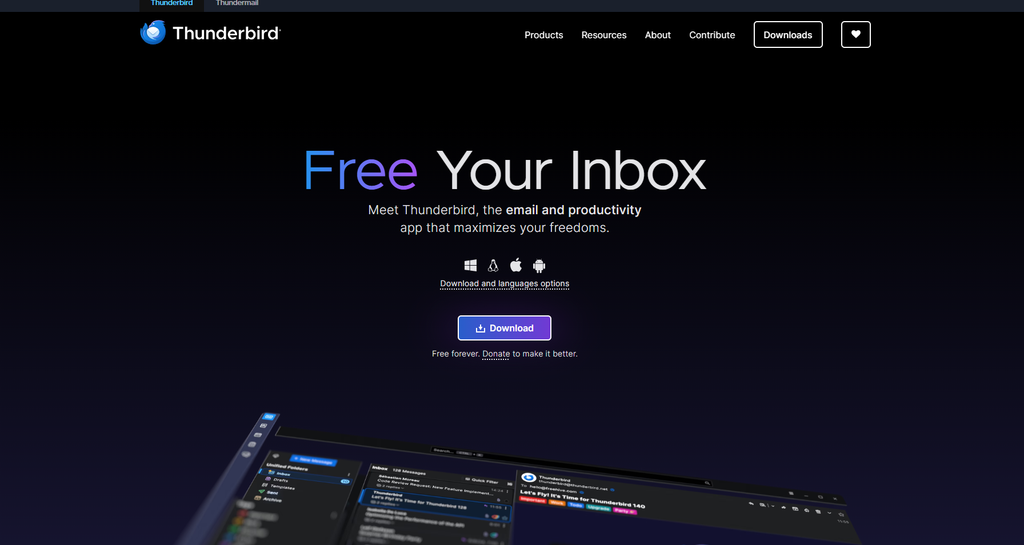
Thunderbird is the free, open-source desktop client Mozilla has kept alive since 2003, and 2026 is the strongest year it has had in a long time. It reached version 155 in September 2026, and version 145 in November 2025 added native Microsoft Exchange support, which removed the single biggest barrier to using it at work. It connects to Gmail, Outlook.com, iCloud, and any IMAP or POP account without caps.
Where the paid clients limit you to one, two, or three accounts on their free tiers, Thunderbird has never limited anything. My ranking here is research-led on the Exchange and roadmap details, and hands-on for the day-to-day inbox work, since two people on our team run it full time.
Key Features
- Unlimited accounts with a unified inbox. No tier gates the number of mailboxes you can add.
- Native Exchange support. Shipped in version 145 using Exchange Web Services, so no third-party add-on is needed for mail.
- Built-in OpenPGP encryption. End-to-end encryption without buying a higher tier or a separate tool.
- Add-ons and themes. A genuine extension ecosystem, which nothing else on this list matches.
- Local-first storage. Mail lives on your machine and connects straight to your provider. No vendor holds your credentials.
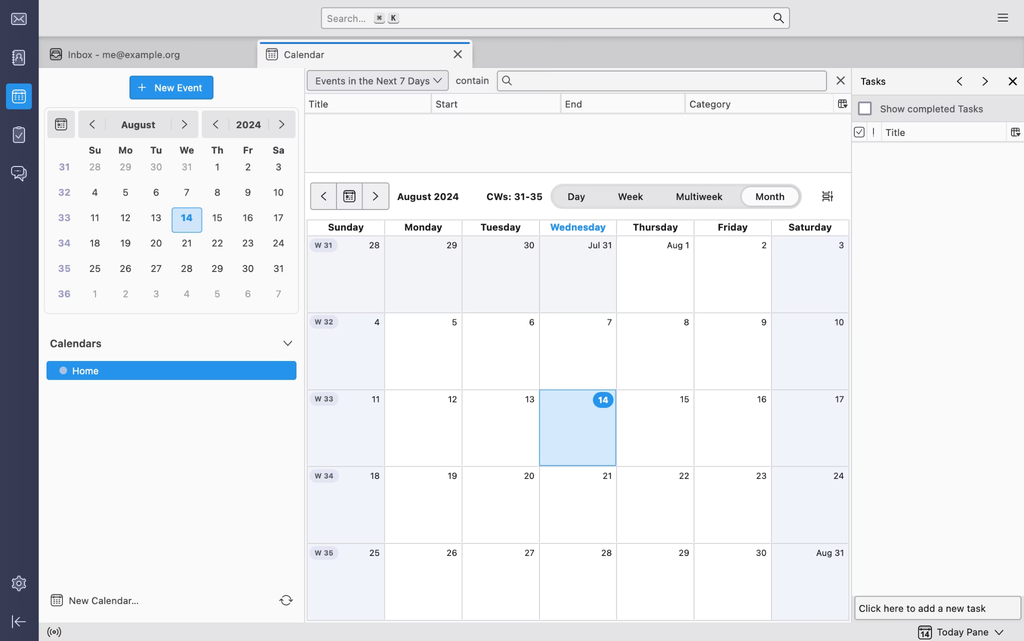
- Calendar, tasks, contacts, feeds, newsgroups. All included, all free.
Pros
- Genuinely free with no account caps, no ads, and no upsell inside the app
- Open source, so the privacy claims are checkable rather than asserted
- Runs on Windows, Mac, and Linux, which matters if your setup is mixed
- Monthly release cadence now, plus an ESR track for people who want stability
- Import tools handle moving off Outlook without much drama
Cons
- The interface still looks and feels older than the paid clients, and no amount of theming fully fixes it
- The Exchange support has a shelf life on cloud mailboxes, since EWS is being disabled in Exchange Online from October 1, 2026
- Setup for anything beyond a standard IMAP account can get technical fast
- No built-in AI assistant, so you need a third-party add-on for summarizing or drafting
- The Thundermail branding rollout has caused confusion about whether Thunderbird itself is going paid
Pricing
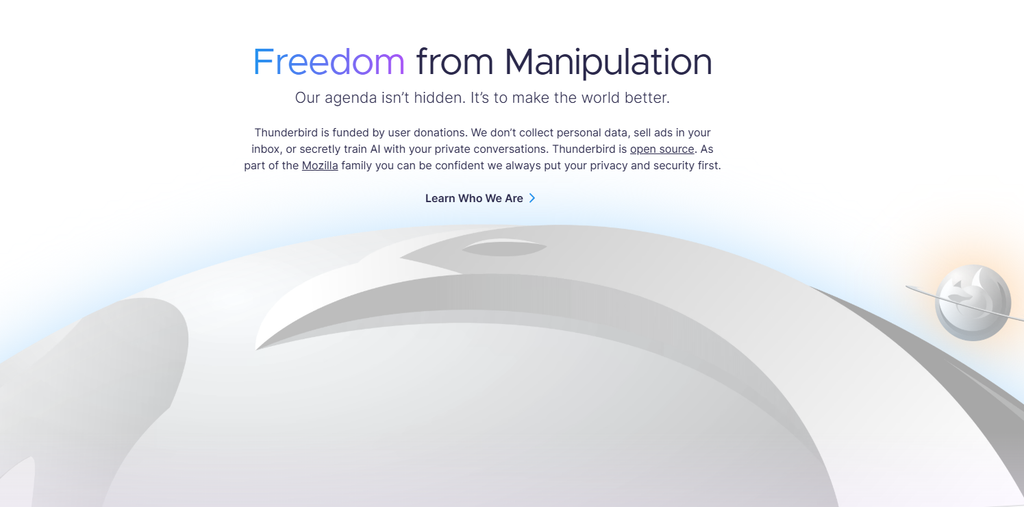
Thunderbird is completely free, with no paid tier, no account limit, and no ads inside the app. The only paid product in the Thunderbird family is Thundermail, a separate hosted email service. Thunderbird says it will add more pricing tiers once Thundermail leaves beta and opens to the public, so there’s no final price yet. You don’t need Thundermail to use the Thunderbird app.
Reviews & Ratings
Thunderbird does not carry the kind of consolidated B2B review profile that eM Client or Mailbird do, which makes a clean G2 or Capterra number hard to cite honestly. Rather than repeat a thin or stale figure, I would point you at the qualitative signal: it is the most consistently recommended free pick across independent 2026 roundups, including lists published by direct competitors.
Skip this if: you want something that looks modern out of the box, or you need a polished built-in AI assistant without hunting for an add-on.
Verdict: Thunderbird wins this roundup because it is the only client that does not make you trade something away. No caps, no subscription, no vendor holding your credentials. If you are on a cloud Exchange mailbox, watch the EWS deadline and confirm Graph support before you commit your work account.
2. eM Client
Best for: People replacing Outlook who want a polished paid app without a monthly bill
Starting price: Around €29.95/year, or around €39.95 one-time for a single device
Key differentiator: The closest thing to a like-for-like classic Outlook replacement
Quick Overview
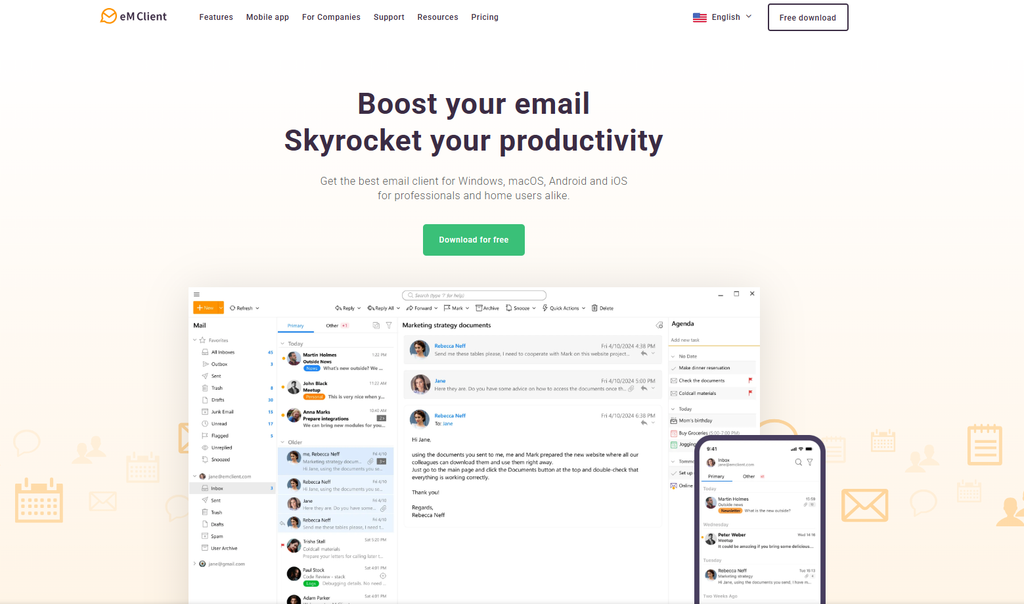
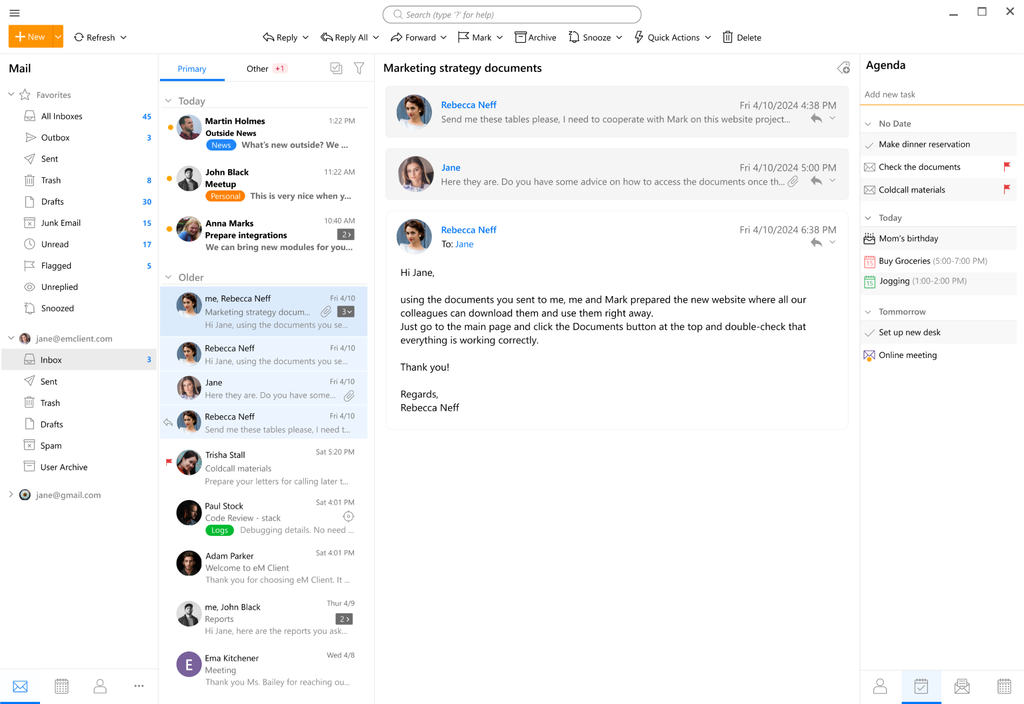
eM Client is the app I see recommended most often by people who tried the new Outlook and gave up on it. It bundles mail, calendar, contacts, tasks, and chat into a layout that classic Outlook users recognize instantly, which is most of the appeal.
Zapier named it their top paid pick for Windows in the most recent update to their roundup. It connects to Gmail, Microsoft 365, Exchange, and standard IMAP, and it handles the migration from an existing Outlook profile better than anything else here.
The AI add-on is included in both paid tiers rather than sold separately. The catch is the licensing model, which is more complicated than the headline price suggests.
Key Features
- Full PIM suite. Mail, calendar, contacts, tasks, and notes in one window, laid out the way Outlook users expect.
- Watch for Reply and Send Later. Long-time users name these as the two features they would not give up.
- Signature library. Multiple signatures with proper management, not a single text box.
- Outlook profile import. Pulls your existing account setup across so you are not re-entering server settings.
- AI assistant included. Bundled with both paid tiers rather than added as an upsell.
- Broad integrations. Gmail, Google Calendar, Google Drive, Google Meet, Microsoft Teams, OneDrive, and Dropbox, among others.
Pros
- Familiar layout that makes the switch off classic Outlook genuinely painless
- One-time license option, which is rare in 2026 and gets rarer every year
- Free tier is fully functional rather than crippled, just capped at two accounts
- AI features included in the paid price instead of bolted on as a separate charge
- Volume pricing drops steeply, which helps small teams
Cons
- The perpetual license only covers the version you bought, so the next major release costs again unless you add Lifetime Upgrades
- Reviewers repeatedly describe the pricing structure as confusing, especially around upgrades and VIP support
- Support quality is the most common complaint, with several Capterra reviewers reporting unanswered tickets even on paid VIP support
- Licensing is per device, so a laptop and a desktop is two licenses
- One long-running Capterra complaint describes a failure to send large attachments on Windows that went unresolved across multiple tickets
Pricing
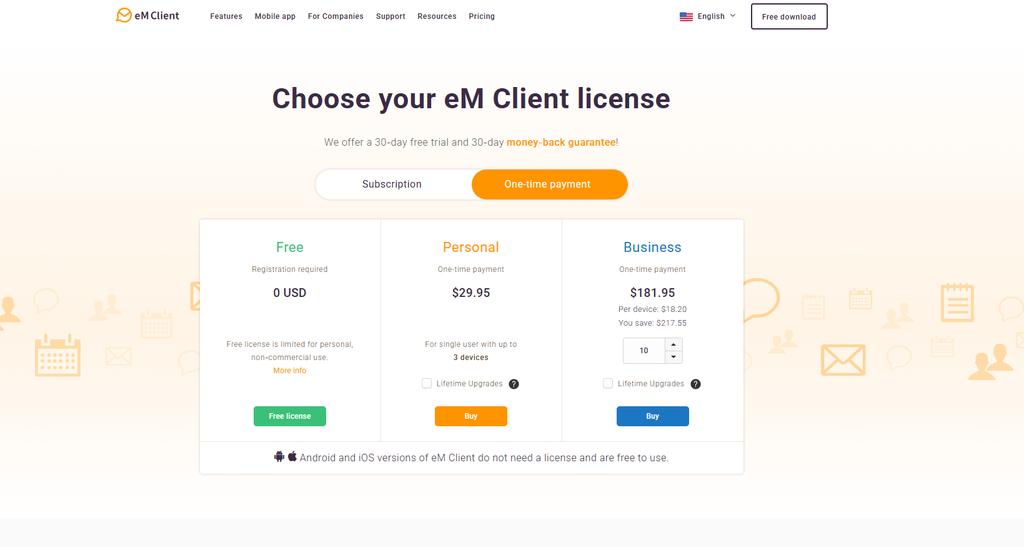
eM Client has a free plan at $0 for personal, non-commercial use, limited to 2 email accounts. It includes core email, calendar, contacts, tasks, encryption, themes, and chat, but leaves out features such as snooze, send later, tracking-pixel blocking, notes, and advanced integrations.
For individuals, the Personal plan costs $19.95/year for one user on up to 3 devices, with unlimited email accounts, VIP support, and the AI add-on included. There is also a $29.95 one-time Personal license with lifetime upgrades, though AI requires a separate add-on on that option.
Business pricing is $111.95/year or $181.95 as a one-time purchase. The subscription includes AI, while the one-time license requires the AI add-on separately. eM Client offers a 30-day free trial and a 30-day money-back guarantee.
Reviews & Ratings
G2 rates eM Client 4.0 out of 5 across 59 reviews, with small business buyers making up roughly 44% of reviewers. Capterra carries 188 verified reviews. Sentiment splits cleanly: value for money scores well, support does not. Ratings on both platforms drift, so re-check before publication.
Skip this if: you need responsive vendor support, or you run mail across more than two or three devices and the per-device licensing gets expensive fast.
Verdict: The best paid client on this list, and the one I would hand to someone migrating off classic Outlook who does not want to relearn anything. Buy the Lifetime Upgrades add-on or buy the subscription. The bare perpetual license is the option that ends up costing more.
3. Microsoft Outlook
Best for: Microsoft 365 and Exchange mailboxes, especially work accounts
Starting price: Free for the new Outlook, or bundled with Microsoft 365
Key differentiator: Nothing else comes close on Exchange and Microsoft 365 compatibility
Quick Overview
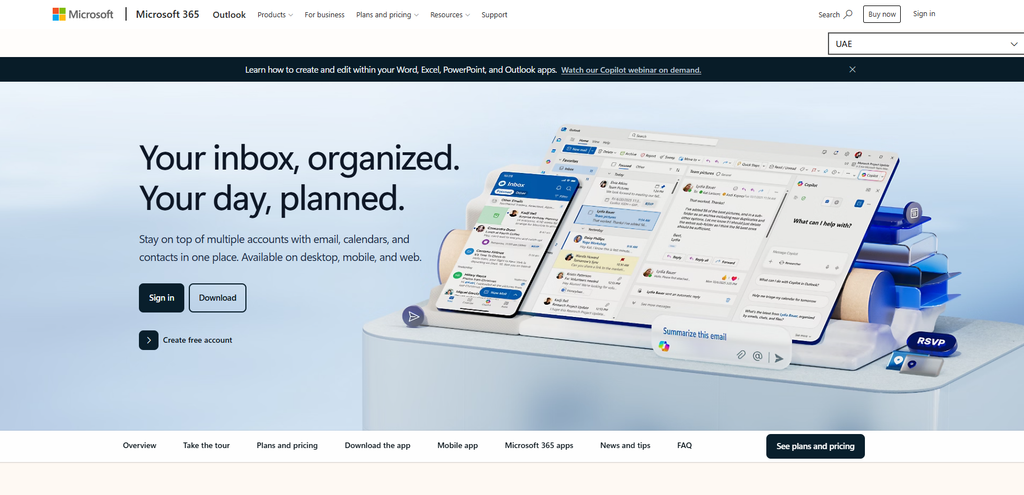
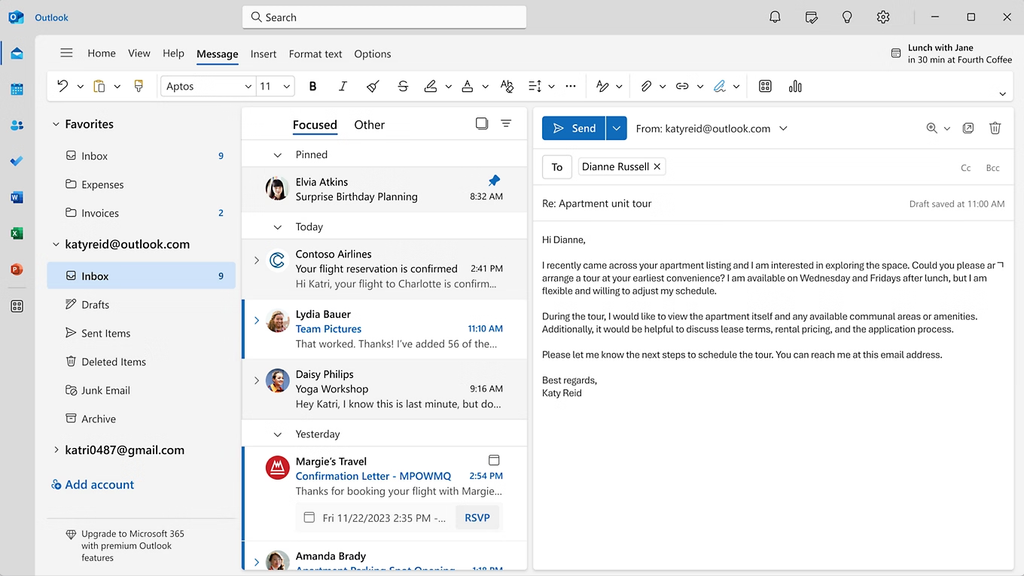
Outlook is not one product in 2026, and that confuses more buyers than anything else in this category. There is the new Outlook for Windows, which reached general availability in August 2024 and is what ships on new machines.
There is classic Outlook, the Win32 app people have used for twenty years. And there is Outlook 2024, the current one-time-purchase desktop release. They are different applications, not versions in a sequence.
If your mailbox lives on Exchange or Microsoft 365, Outlook remains the most compatible option available, which is why it places third despite everything below.
Key Features
- Deepest Exchange and Microsoft 365 support. Public folders, shared mailboxes, and calendar delegation work properly.
- Microsoft Copilot. AI drafting and summarizing for users on eligible Microsoft 365 plans.
- Teams and Office integration. Meeting scheduling and file handling that no third-party client replicates fully.
- Free tier available. The new Outlook works with personal accounts at no cost, with ads.
- Classic Outlook still downloadable. Eligible Microsoft 365 subscribers can install it separately at no extra licensing cost.
Pros
- The safest choice for a work mailbox, by a wide margin
- Copilot is the most capable AI layer on this list for people already paying for Microsoft 365
- Free option exists for personal accounts
- Enormous documentation and support ecosystem behind it
Cons
- The new Outlook drops COM and VSTO add-in support entirely, which breaks a lot of established workflows
- Microsoft’s own feature comparison lists many classic capabilities as partially available, under investigation, or unsupported
- The free personal experience includes ads unless you subscribe to Microsoft 365
- No true unified inbox across accounts in the way Mailbird or Spark do it
- The classic Outlook timeline is unsettled, which makes long-range planning harder than it should be
- Users consistently report classic Outlook performs better than its replacement
Pricing
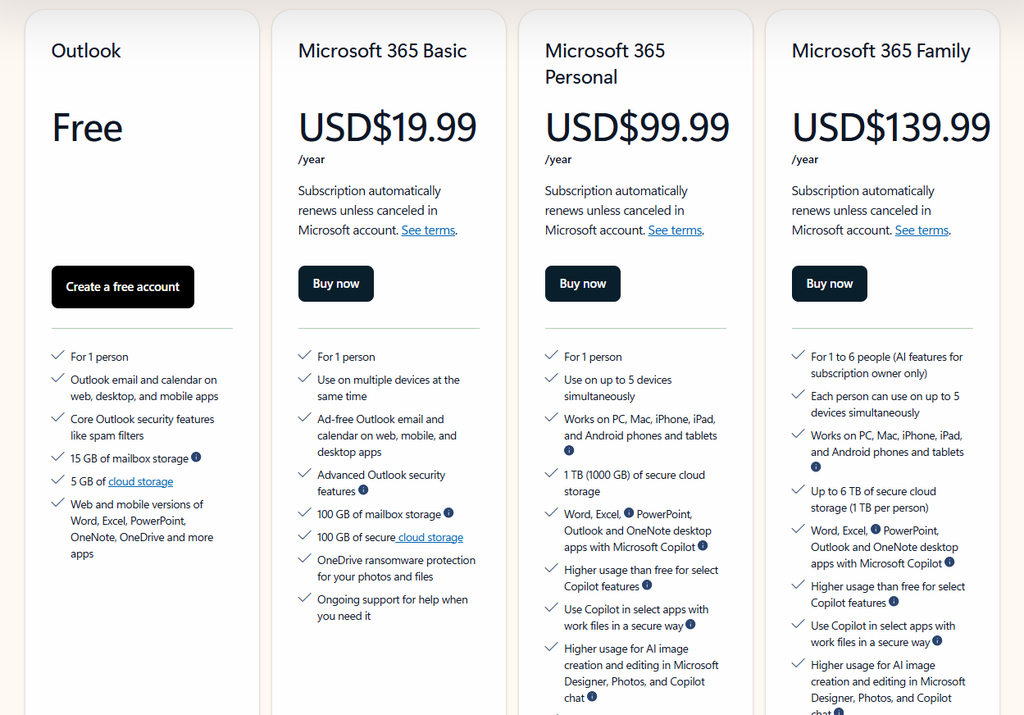
Outlook is free on Windows and includes email and calendar access across desktop, web, and mobile. The free plan comes with 15 GB of mailbox storage and 5 GB of cloud storage, plus Microsoft’s core spam and security features.
Microsoft 365 Basic costs $19.99/year for one person. It removes ads, raises mailbox and cloud storage to 100 GB each, and adds advanced Outlook security and ongoing support.
For the full desktop Microsoft 365 suite, Microsoft 365 Personal costs $99.99/year for one person and includes Outlook, Word, Excel, PowerPoint, 1 TB of cloud storage, and Copilot features. Microsoft 365 Family costs $139.99/year for up to six people, with 1 TB of storage per person.
Reviews & Ratings
Outlook’s review profiles are dominated by enterprise deployment feedback and are not especially useful for an individual Windows buyer. The more telling signal is in Microsoft’s own community forums, where the recurring themes on the new Outlook are missing CalDAV and CardDAV support, no VBA, and clunkier send-as handling compared to classic.
Skip this if: you rely on COM or VSTO add-ins, you need CalDAV or CardDAV for self-hosted calendars, or a true unified inbox is the reason you are shopping in the first place.
Verdict: If your mailbox is on Microsoft 365 or Exchange, use Outlook and stop reading. If it is not, the case for Outlook gets thin quickly, and several apps below do multi-account work better for less money.
4. Mailspring
Best for: People who want the old Windows Mail simplicity back
Starting price: Free
Key differentiator: The lightest, simplest client here that still has real search
Quick Overview
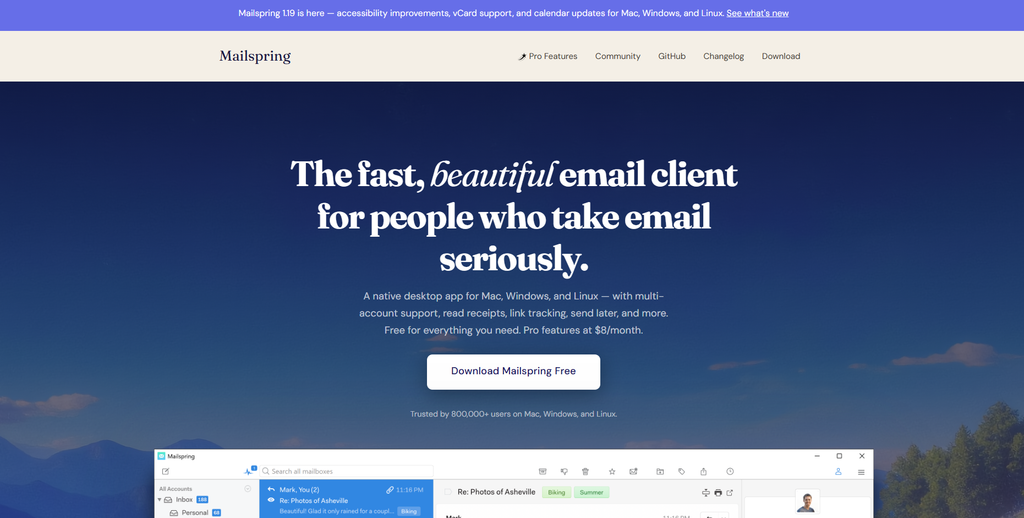
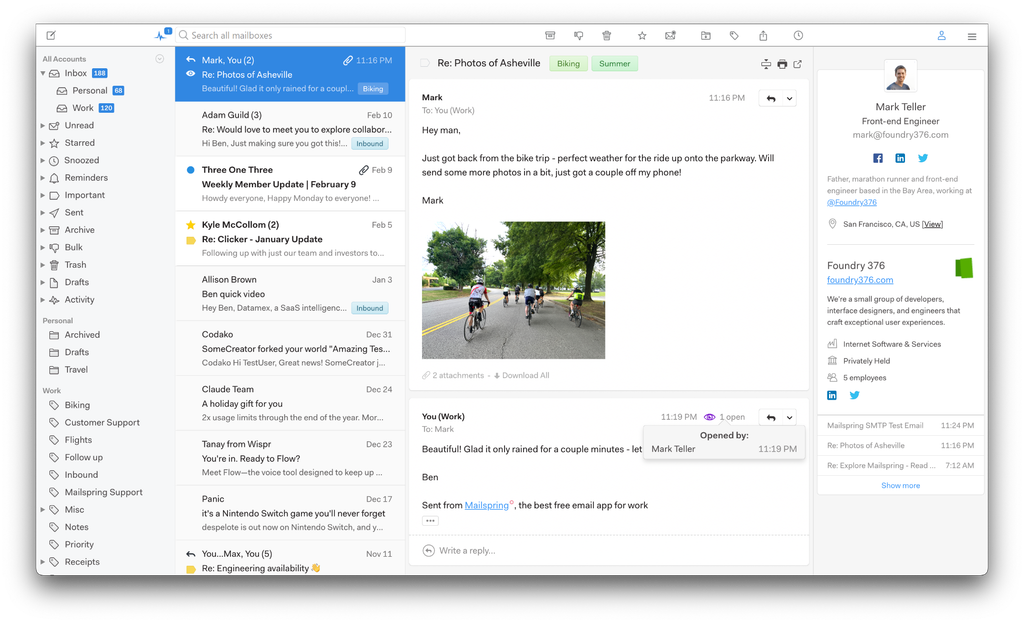
Mailspring is the closest thing to a modern replacement for what Windows Mail used to be, and that is exactly why it earns a spot. Zapier calls it their pick for a simple free option, and notes it feels a lot like Apple Mail on macOS.
It grew out of Nylas Mail after that project was abandoned in 2017, when one of the original developers forked it and kept it going. Setup is quick, it supports Microsoft 365, iCloud, and manual IMAP, and it runs a guided tour after install including a test send to confirm your configuration works. It is free, cross-platform, and open source.
Key Features
- Gmail-style search operators. Parameters like since and from work the way you expect, which is rare in a free client.
- Unified inbox. Combined view across accounts without a paid tier.
- Guided setup with test send. Confirms your account is configured correctly before you rely on it.
- Clean, light interface. Lower visual and memory overhead than the full PIM suites.
- Cross-platform. Windows, Mac, and Linux builds.
Pros
- Free, simple, and fast to get running
- The closest feel to the discontinued Windows Mail app, which is what a lot of readers actually want
- Search is genuinely good, not a checkbox feature
- Open source, so the project can survive a maintainer stepping away, as it already has once
Cons
- Fewer features than Thunderbird across the board, with no real add-on ecosystem
- No built-in AI assistant
- Release cadence is slow, and the project has gone long stretches between updates
- Asks you to create a Mailspring ID at install, which is a sync service rather than a pure local client
- Advanced features like tracking and templates sit behind the paid Pro tier
Pricing
Free for the core client. Mailspring Pro adds read receipts, link tracking, templates, and reminders for a modest monthly fee. Confirm the current Pro price on the vendor site before publication, since it has not moved in a while and is easy to get wrong.
Reviews & Ratings
Mailspring does not maintain a substantial G2 or Capterra presence, and the counts that do exist are too thin to quote responsibly. I would rather say that plainly than publish a rating built on a handful of entries.
Skip this if: you need Exchange support, heavy customization, or a vendor with a visible roadmap and a support team behind it.
Verdict: The right pick for someone who liked Windows Mail, does not want to pay anything, and finds Thunderbird overwhelming. Check the release history before you commit a work account to it, because maintenance pace is the real risk here.
5. Mailbird
Best for: Running four or more accounts from one unified inbox on Windows
Starting price: Around €27.60/year, with a lifetime license option
Key differentiator: Built Windows-first, with the deepest third-party app integration list
Quick Overview
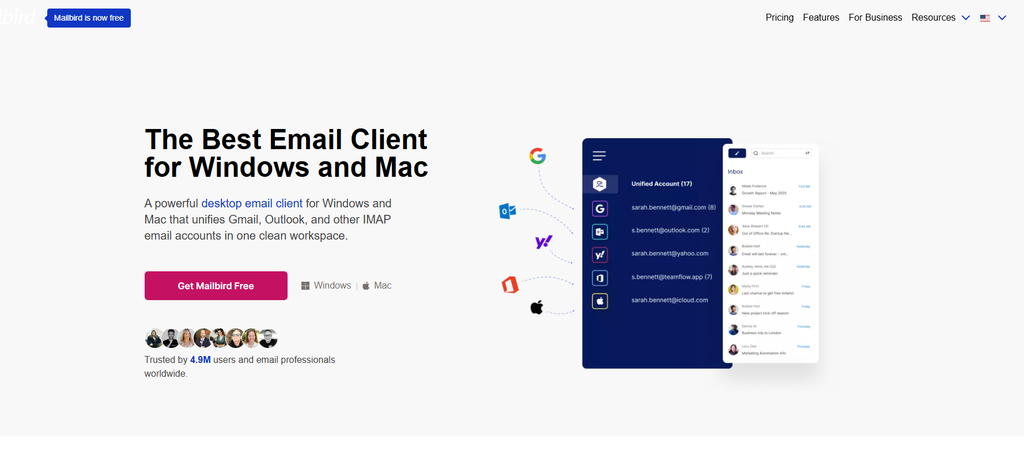
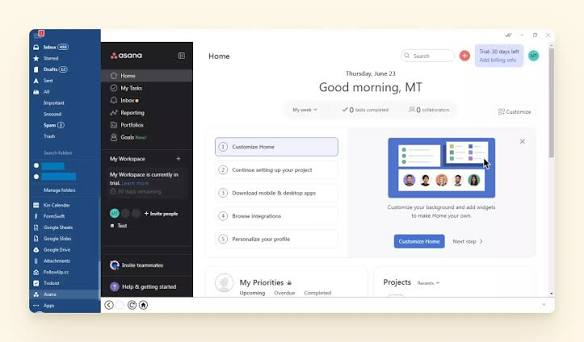
Mailbird has been a Windows-first client for over a decade, and it only expanded to Mac in September 2025 through the Apple App Store. Its whole pitch is the unified inbox plus integrations, so Gmail, Slack, WhatsApp, Google Calendar, Todoist, Asana, and Trello all sit inside the mail window.
That makes it a reasonable fit for people who are tired of switching apps all day. The interface is the cleanest on this list. The reason it does not rank higher is money: the licensing has generated a well-documented trail of complaints about unexpected upgrade charges, and that is a trust problem, not a feature problem.
Key Features
- Unified inbox across accounts. The feature the product is built around, and it works well.
- Ten-plus app integrations. Slack, WhatsApp, Todoist, Asana, Trello, Google Drive, and more, embedded in the sidebar.
- Email tracking and Send Later. Available on the paid tiers.
- Fast account switching. Genuinely quick when you are moving between four or five mailboxes.
- Cross-platform license. One license now covers Windows and Mac since the 2025 Mac launch.
- Volume discounts. 5% to 25% off depending on seat count, starting at two licenses.
Pros
- The best unified inbox experience on this list for a large number of accounts
- Integration list is the deepest here, which genuinely reduces app switching
- Clean, modern interface that new users pick up immediately
- Lifetime license breaks even in under three years against the yearly plan
- 14-day money-back guarantee
Cons
- The free tier allows one account only, which undercuts the product’s entire value proposition
- Multiple GetApp reviewers report buying a lifetime license and then being charged again for the next major version
- Lifetime Updates is a separate add-on at around €65 at checkout, and missing it is the source of most of those complaints
- G2 rates it below eM Client, and reviewers cite bugs that went unfixed across months of tickets
- The Mac version has historically lagged Windows in features
Pricing
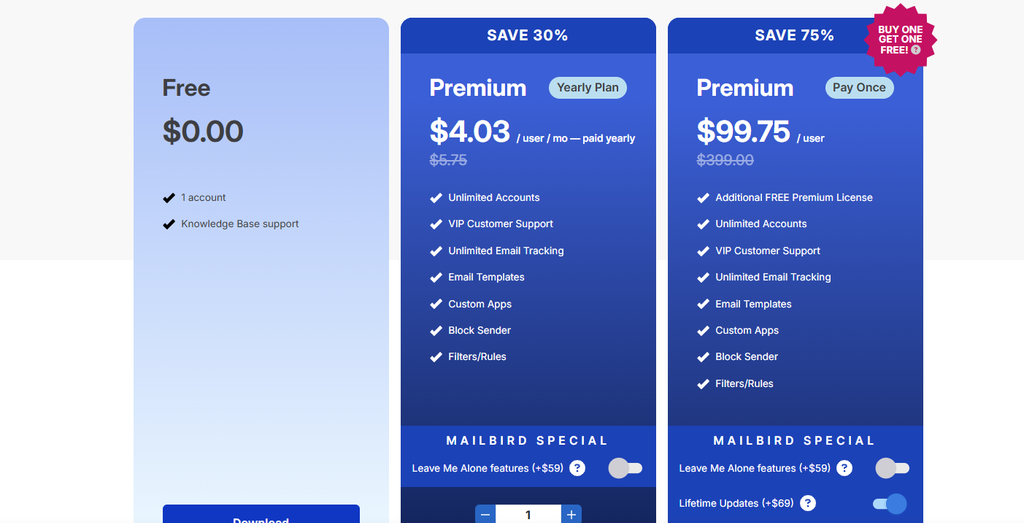
Mailbird has a free plan at $0 with support for 1 email account and access to its knowledge base. It works on Windows and macOS and supports both IMAP and POP3 accounts.
The Premium yearly plan costs $4.03 per user/month when billed annually under the current discount, down from $5.75. It includes unlimited email accounts, VIP support, unlimited email tracking, templates, custom apps, filters/rules, and other premium features.
Mailbird also offers a one-time Premium license for $99.75 per user during the current 75% promotion, reduced from $399. Lifetime updates cost an extra $69, while the optional Leave Me Alone features add $59. All paid plans come with a 14-day money-back guarantee.
Reviews & Ratings
G2 rates Mailbird 3.6 out of 5 across 101 reviews, with small business buyers at roughly 80% of reviewers. GetApp carries 394 verified reviews. The pricing and upgrade complaints are the dominant negative theme across both platforms, which is why I weighted them heavily rather than treating them as isolated cases.
Skip this if: you only run one or two accounts, since the free tier will not cover you and the paid tier buys you a feature you do not need.
Verdict: Buy it for the unified inbox if you genuinely juggle four or more mailboxes. Go in with the Lifetime Updates add-on and no illusions about what “lifetime” means here, and it is a good app. Go in assuming the headline price is final, and you will end up in the same review thread as everyone else.
6. Canary Mail
Best for: Encrypted email and PGP without leaving a normal desktop client
Starting price: Around $49/year
Key differentiator: On-device AI processing plus managed PGP key handling
Quick Overview
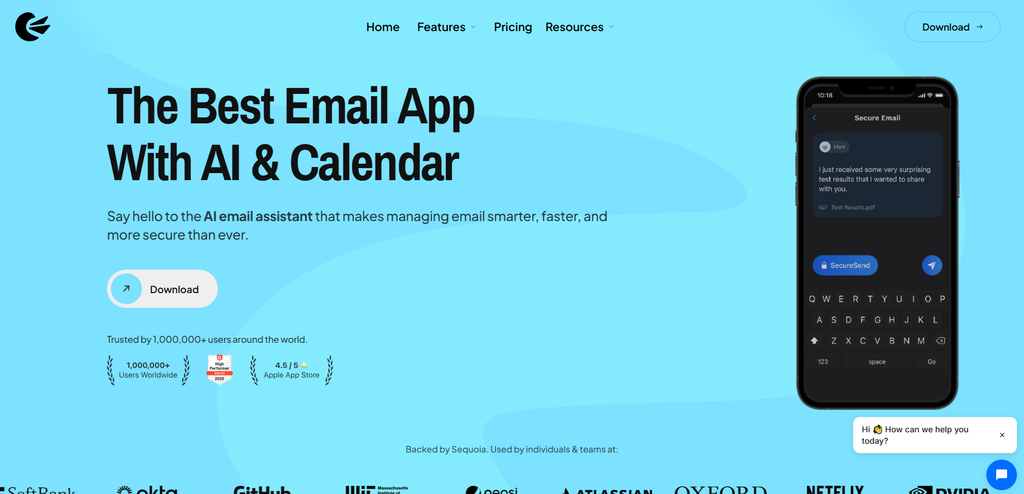
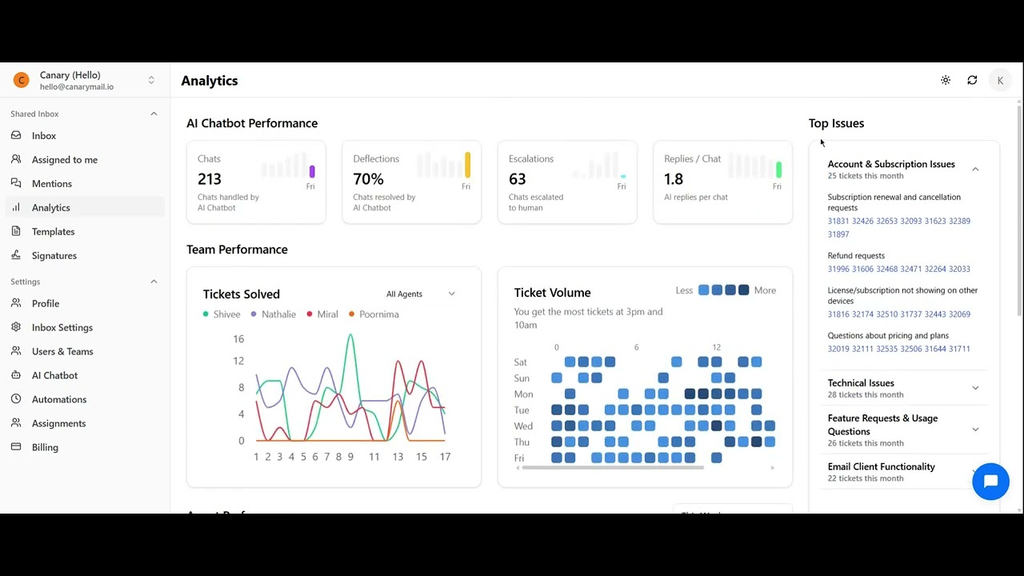
Canary Mail is the pick when encryption is a job requirement rather than a preference. It handles OpenPGP with key management done for you, which removes the single biggest reason people abandon PGP.
Around that sits a conventional modern client with a unified inbox, snooze, pin, read receipts, and an AI assistant called Copilot. What separates it from Spark and Spike is where the AI runs: Canary processes on-device rather than shipping message content to a server.
For anyone handling client data under HIPAA or similar obligations, that distinction is the entire reason to look at it.
Key Features
- Managed OpenPGP. End-to-end encryption with key handling done by the app rather than by you.
- On-device AI. Message content is not shipped to a server for processing.
- AI Copilot. Summarizing, drafting, and reply suggestions inside the client.
- Focus Inbox and Inbox Zero workflows. Canary’s equivalent of a smart inbox, built on AI filters.
- Cross-platform. Windows, Mac, iOS, and Android.
- Lifetime license option. Available alongside the subscription tiers.
Pros
- The strongest privacy position of any full-featured client here, ahead of Thunderbird on AI handling specifically
- PGP that a non-technical user can actually operate
- Genuinely useful AI without the server-side tradeoff Spark makes
- Works with Gmail and Outlook mailboxes, not locked to one provider
Cons
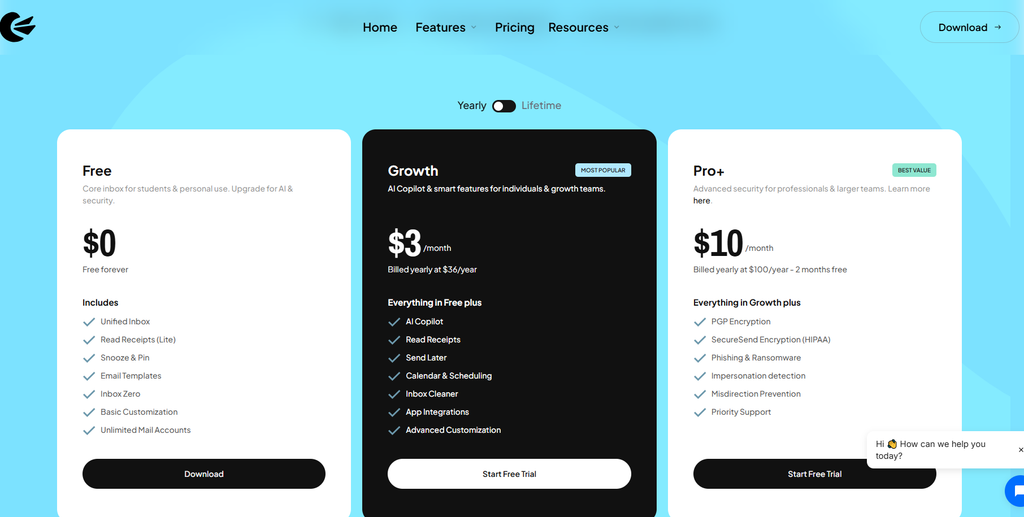
- PGP sits on the higher Pro+ tier at around $100 a year, not the cheaper plan, which surprises buyers
- More expensive than eM Client for a comparable feature set if you do not need encryption
- Smaller company and smaller user base, so less third-party documentation when something breaks
- Windows version gets less attention than the Mac build in vendor communications
Pricing
Around $49 a year for the standard tier. The Pro+ tier, which is where PGP lives, runs around $100 a year. A lifetime license option exists.
Check the tier mapping carefully before buying. Several reviews note that buyers assume encryption is included at the entry price and find out otherwise. If PGP is why you are here, budget for Pro+.
Reviews & Ratings
Canary’s G2 profile exists but carries limited pricing detail and a thin review count relative to eM Client or Mailbird. I would not publish a headline rating off it. The useful signal is that independent comparisons consistently name it the only serious option in this roundup when end-to-end encryption is a hard requirement.
Skip this if: encryption is a nice-to-have rather than a requirement. You will pay a premium for a capability you never switch on.
Verdict: Buy it for the encryption or do not buy it. As a general-purpose Windows client it is fine and slightly expensive. As an encrypted client that a normal person can operate, it has no real competition on this list.
7. Spike
Best for: People who find threaded email exhausting and want it to read like chat
Starting price: Free for one account, around $5 to $8 per user monthly for paid tiers
Key differentiator: Collapses email threads into chat bubbles instead of formal message stacks
Quick Overview
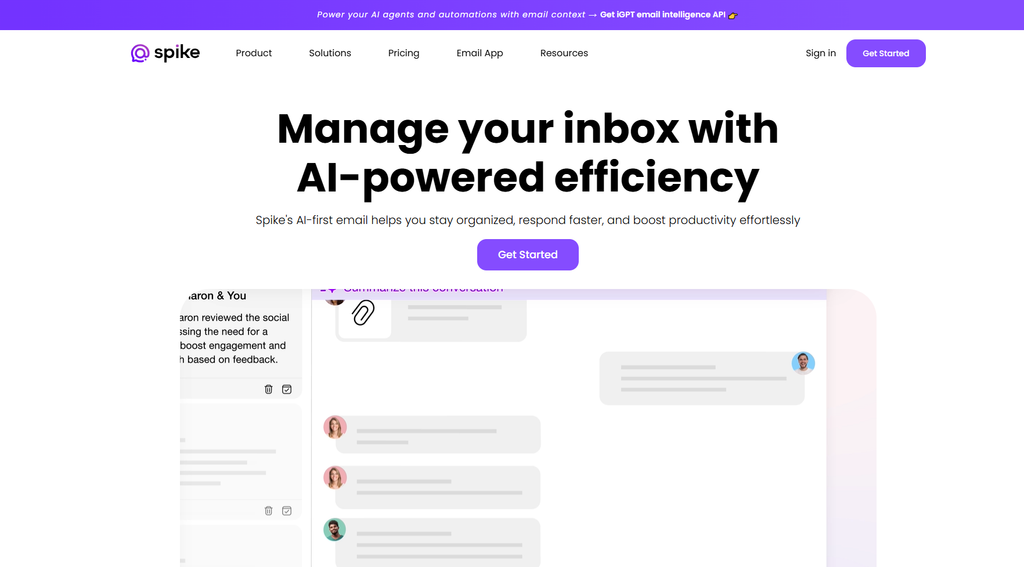
Spike is the most opinionated app in this roundup. It strips the headers and signatures out of email and renders conversations as a chat feed, which either fixes your inbox or makes business email feel strange.
There is no middle ground, and you will know within two days which camp you are in. Underneath it is a normal client that connects to Gmail, Outlook, Yahoo, iCloud, and any IMAP account using your existing address, so there is no migration and no new mailbox.
It also folds in notes, tasks, calendar, and video calls, which pushes it toward being a small workspace rather than a mail app.
Key Features
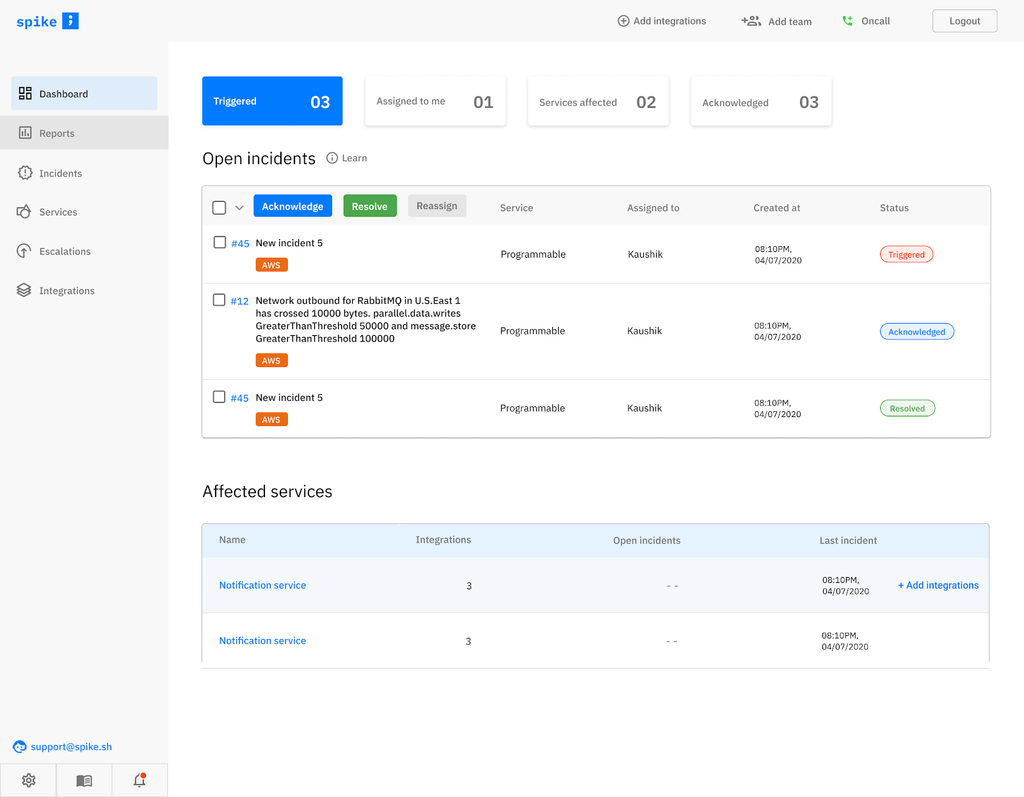
- Conversational email. Threads render as chat bubbles with the header clutter removed.
- Unified inbox across accounts. Standard on paid tiers, capped at one account on free.
- Spike AI. Thread summaries, reply suggestions, and inbox prioritization.
- Built-in notes, tasks, and calendar. Reduces the number of apps open alongside mail.
- Voice and video calls. Startable from any conversation thread.
- Teamspace. Shared inboxes, team chat, and collaboration for small teams.
Pros
- The chat format genuinely speeds up high-volume back-and-forth with the same handful of people
- Works with your existing email address, so trying it costs nothing but time
- Native Windows app alongside Mac, iOS, Android, and web
- Cheaper entry point than Spark’s current tiers
- Free tier includes a small AI allowance, which is enough to judge whether the AI is useful to you
Cons
- The chat metaphor breaks down for formal external email, contracts, and anything with long quoted history
- Free tier is one account, which is not enough to test the unified inbox
- Server-side processing is required for the conversational rendering and push, so it is not a local-first client
- Weak fit for teams that need CRM, help desk, or project management integrations
- Smaller ecosystem and less documentation than the established clients
Pricing
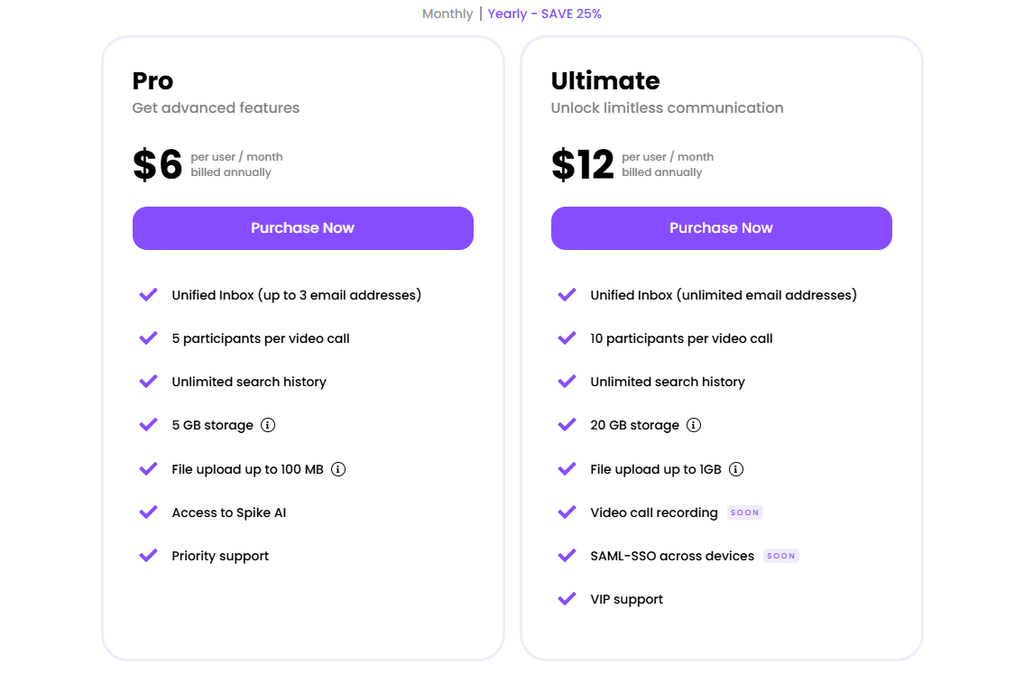
Spike has two paid plans. Pro costs $6/user/month billed annually and includes up to 3 email addresses, 5 GB storage, Spike AI, unlimited search history, and priority support.
Ultimate costs $12/user/month billed annually and adds unlimited email addresses, 20 GB storage, larger file uploads, and VIP support.
Reviews & Ratings
Spike maintains active Capterra and GetApp profiles. Ratings are reasonable but the review base is smaller than eM Client’s or Mailbird’s, so I would cite the count alongside any figure and re-check it close to publication.
Skip this if: most of your email is formal, external, or legal in nature. The format works against you there.
Verdict: Try the free tier for a week before you form an opinion, because no feature list will tell you whether the chat format suits how your brain works. If it clicks, nothing else on this list replaces it. If it does not, you will know fast and you will have lost nothing.
8. Spark Mail
Best for: AI triage across Windows, Mac, and mobile with a genuinely polished interface Starting price: Free tier available; Plus at $99 per user per year
Key differentiator: Smart Inbox auto-sorting plus the broadest platform coverage here
Quick Overview
Spark, made by Readdle, is the most polished cross-platform client in this roundup and the one whose position weakened most in 2026. Smart Inbox auto-sorts newsletters, notifications, and personal mail without you writing rules, and it remains the feature people switch for.
The client covers Windows, Mac, iOS, and Android with a usable free tier for core multi-account mail. Two things pushed it down my ranking. Readdle retired the affordable roughly $60 a year Premium tier in favor of Plus at $99 and Pro at $199 per user annually.
And Spark stores your email credentials on its own servers to power push, Send Later, and team features.
Key Features
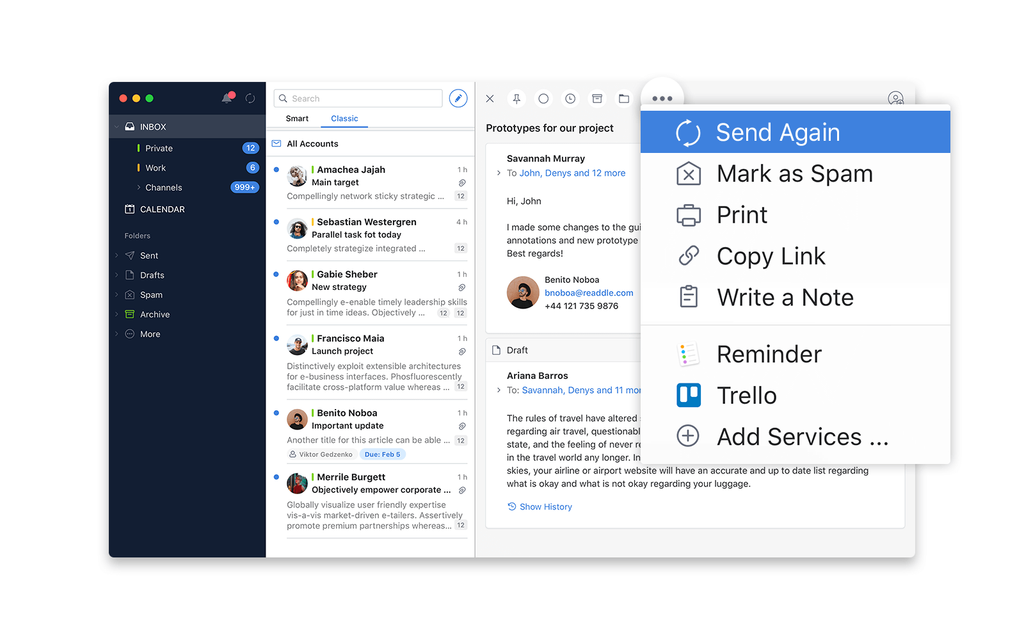
- Smart Inbox. Automatic categorization of newsletters, notifications, and personal mail.
- Spark AI. Compose, rephrase, translate, and summarize, with a monthly credit allowance.
- Full platform coverage. Windows, Mac, iOS, Android, and web.
- Team collaboration. Shared drafts, comments, and delegation.
- Spark CLI. Command-line access to mail and calendar, which is unusual in this category.
- Unified inbox across unlimited accounts on paid tiers.
Pros
- Best-looking client here, and the interface holds up across every platform
- Smart Inbox does real work rather than acting as a marketing feature
- Free tier is usable for core multi-account mail, not a crippled trial
- Team features are more mature than anything else on this list except Missive-class tools
Cons
- Credentials are stored on Readdle’s servers, which is a hard disqualifier for some compliance requirements
- The affordable Premium tier was retired, and the replacement tiers are a steep jump
- Spark AI is disabled by default and metered with monthly credit limits
- Smart Inbox miscategorizes mail for some users, and correcting it is more work than it should be
- Pricing figures across sources are inconsistent, which suggests the tiers are still moving
Pricing
Spark has a free plan at $0 with unlimited email accounts, Smart Inbox, unified inbox, scheduled sends, snooze, reminders, and calendar support.
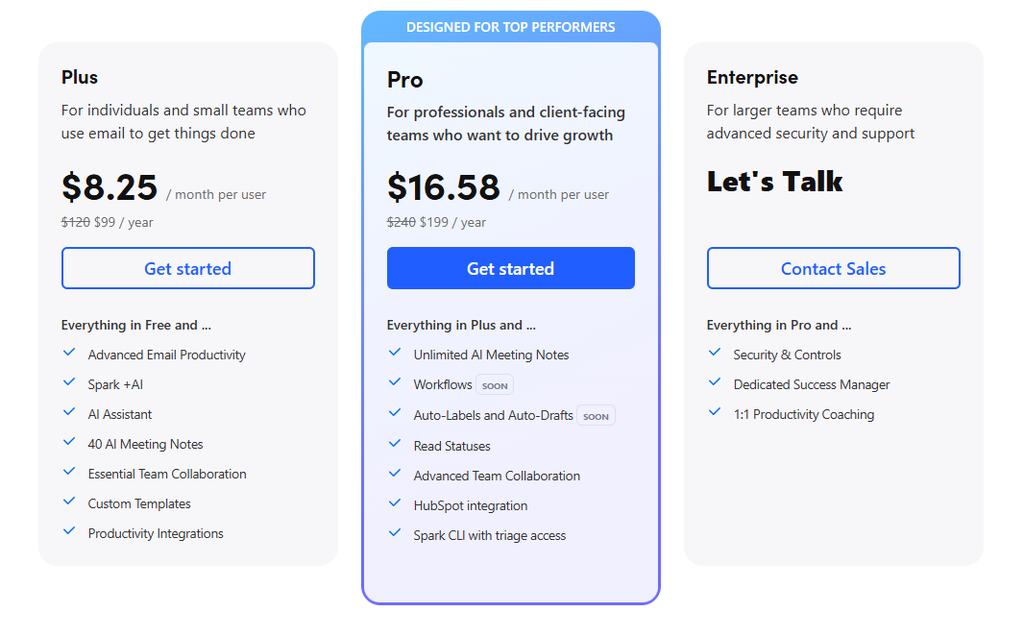
The Plus plan costs $8.25/user/month billed annually ($99/year) and adds Spark +AI, 40 AI meeting notes per month, custom templates, integrations, and broader collaboration features.
The Pro plan costs $16.58/user/month billed annually ($199/year) and adds unlimited AI meeting notes, read statuses, advanced collaboration, HubSpot integration, and higher AI limits. Enterprise pricing is custom.
Reviews & Ratings
Spark carries substantial review volume across G2, Capterra, and Trustpilot, with one recent analysis working through over 1,300 pieces of user feedback. The recurring themes are praise for Smart Inbox and the interface, set against complaints about pricing changes and credential storage. Pull live figures at publication rather than relying on these summaries.
Skip this if: you cannot store mail credentials on a third-party server, or you were drawn in by an old article quoting the $60 Premium tier that no longer exists.
Verdict: Still an excellent client, now priced for people who will genuinely use the team and AI features. If you just want a tidy unified inbox on Windows, Mailbird or eM Client gets you there for a fraction of the annual cost.
9. Proton Mail
Best for: People who want zero-access encrypted mail and will accept the tradeoffs
Starting price: Free, but with a restriction that matters
Key differentiator: Proton’s servers hold only ciphertext, so your provider cannot read your mail
Quick Overview
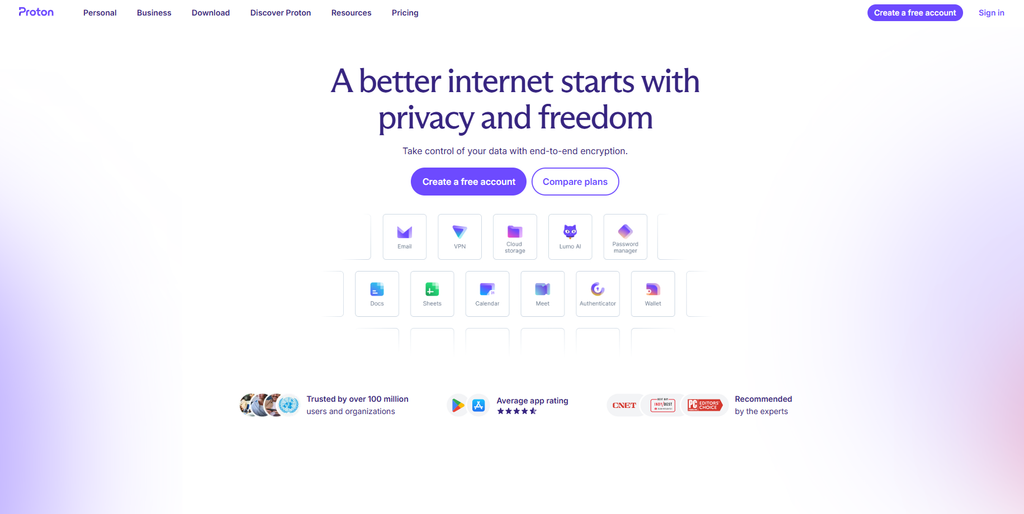
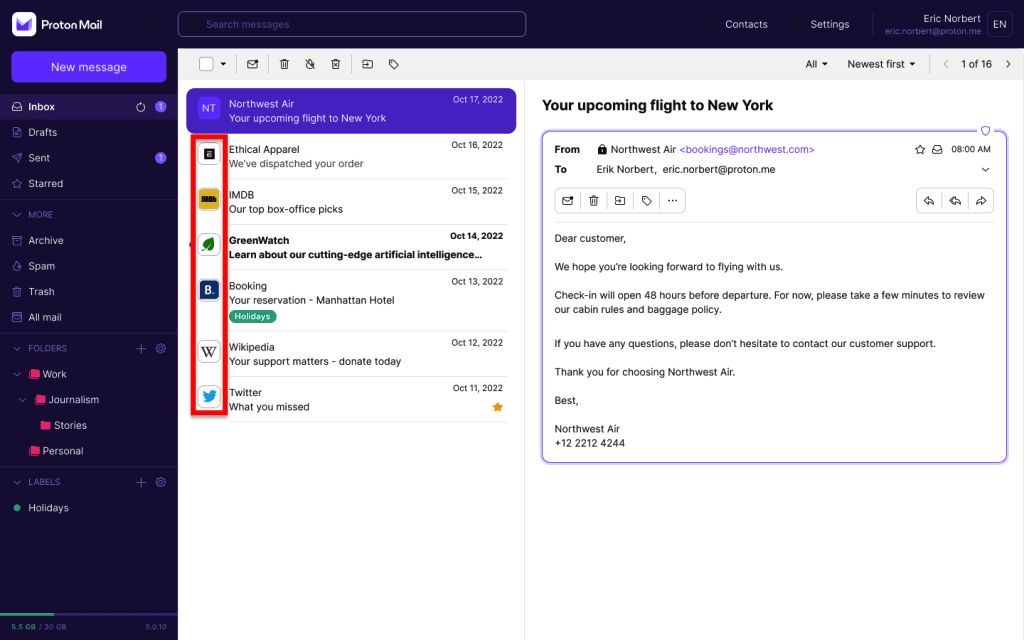
Proton Mail is the only entry here that is a mail service first and a desktop client second, and it ranks last precisely because of that. The Proton Mail Desktop app runs on Windows and gives you a native window into a Proton account.
But Proton addresses do not accept standard IMAP, SMTP, or POP3 connections, because the servers only ever hold encrypted data. Connecting any other client requires Proton Mail Bridge, which decrypts locally and serves mail over a local server.
Bridge requires a paid plan. On the free plan you cannot use Outlook, Thunderbird, or any third-party client at all.
Key Features
- Zero-access encryption. Proton holds ciphertext, not readable mail, under Swiss privacy law.
- Proton Mail Desktop for Windows. A native app rather than a browser tab.
- Proton Mail Bridge. Local IMAP and SMTP translation so Outlook or Thunderbird can connect, on paid plans.
- Custom domain support. Available from the Mail Plus tier upward.
- Bundled Proton suite. Unlimited tiers add VPN, encrypted storage, and a password manager.
Pros
- The strongest privacy guarantee available in this roundup, and it is architectural rather than a policy promise
- Genuinely free tier for web and mobile use
- Bridge is officially tested against Thunderbird and Outlook, so third-party use is supported rather than tolerated
- Good fit if you already pay for Proton VPN or Drive
Cons
- Free-plan users cannot connect any desktop email client, which blocks the entire premise of this article
- Bridge occasionally closes without warning and sync stops silently until you notice
- No unified inbox across non-Proton accounts, so it does not solve the multi-account problem
- Encrypted subject lines are not supported without breaking search, an architectural limit Proton has acknowledged
- Moving encrypted mail into an external client changes the protection model
Pricing
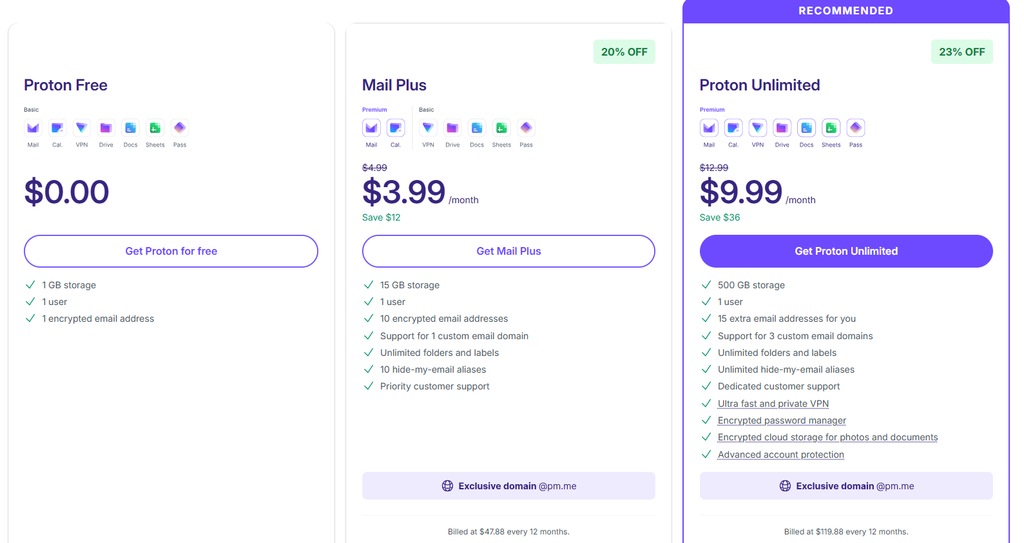
Proton Mail has a free plan at $0 with 1 GB of storage and one encrypted email address. The desktop app is available as a 14-day trial on the free plan.
Mail Plus costs $3.99/month billed annually at $47.88/year, with 15 GB storage, 10 email addresses, one custom domain, and desktop app access.
Proton Unlimited costs $9.99/month billed annually at $119.88/year, adding 500 GB storage, 15 email addresses, three custom domains, and Proton’s VPN, Drive, and password manager.
Reviews & Ratings
Proton Mail’s ratings are strong but they measure the mail service, not the Windows desktop experience. Treat any headline score with that caveat, because the two are not the same product.
Skip this if: you want one app that handles your Gmail, work mailbox, and personal accounts together. Proton is not built for that and will not get you there.
Verdict: Last place here is not a criticism of Proton Mail. It is the highest-privacy option in the roundup. It ranks last because this article is about Windows email clients, and Proton’s answer to that question involves a paid plan, a bridge app, and an account only it can serve.
Email Clients I Would Not Install in 2026
Four names show up on competing lists that should not be there.
Postbox. Postbox’s own FAQ states it is no longer in development and not available for purchase. It still appears on 2026 roundups as a live recommendation. Do not start a fresh install on abandoned software.
Windows Mail, Calendar, and People. Support ended December 31, 2024. These apps cannot send or receive anymore. If yours still opens, it is a shell.
Notion Mail. Shutting down. Not a place to move your mail.
Shortwave. This one is not dead, it is just wrong for this search. Shortwave is a strong AI client built by former Google Inbox engineers, with the best AI search in the category. It is also Gmail-only with no Outlook support and no IMAP. If your Windows mail includes a work mailbox, it cannot help you.
Cost Over Three Years, Compared
Sticker prices mislead in this category. Here is what a single user actually spends across three years, assuming one device and no team discounts.
| Tool | Year 1 | Years 2-3 | 3-year total | Notes |
|---|---|---|---|---|
| Thunderbird | $0 | $0 | $0 | No caps, no upsell |
| Mailspring (free) | $0 | $0 | $0 | Pro tier optional |
| eM Client (perpetual + Lifetime Upgrades) | ~€110 | €0 | ~€110 | The version-proof option |
| eM Client (yearly) | ~€30 | ~€60 | ~€90 | Cheaper over 3 years, costlier after |
| Mailbird (lifetime + updates add-on) | ~€139 | €0 | ~€139 | Promotional price, verify it still stands |
| Mailbird (yearly) | ~€28 | ~€55 | ~€83 | |
| Canary Mail (Pro+, with PGP) | ~$100 | ~$200 | ~$300 | Standard tier is ~$49/yr without PGP |
| Spark Plus | $99 | $198 | ~$297 | Retired Premium tier was ~$60/yr |
| Microsoft 365 Personal | ~$70 | ~$140 | ~$210 | Includes all of Office, not just mail |
| Proton Mail Plus | ~$48 | ~$96 | ~$144 | Required for Bridge access |
Two things fall out of this. The free options are not compromises anymore, and the gap between the cheapest paid client and the most expensive one is roughly 3.5x for a feature set that overlaps heavily.
Prices converted and rounded for comparison. Currency and promotional pricing vary by region.
Which One Should You Actually Install?
| If this is you | Install this | Why |
|---|---|---|
| Your work mailbox is on Microsoft 365 | Outlook | Nothing else matches it on Exchange, and the EWS retirement makes that gap wider |
| You want the best free option, full stop | Thunderbird | No caps, no ads, no vendor holding your credentials |
| You are leaving classic Outlook and want it to feel familiar | eM Client | Closest layout match, and the import actually works |
| You liked Windows Mail and want simple | Mailspring | Lightest app here with real search |
| You run four or more mailboxes | Mailbird | Best unified inbox, but buy Lifetime Updates |
| Encryption is a job requirement | Canary Mail | Managed PGP plus on-device AI |
| You want maximum privacy and will pay for it | Proton Mail | Zero-access encryption, with the bridge caveat |
| Your inbox is mostly rapid back-and-forth | Spike | The chat format saves real time here |
| You need AI triage across Windows and mobile | Spark | Smart Inbox is the best in class, at a price now |
Moving Off Outlook Without Losing Anything
Three things break during migrations, in my experience, and all three are avoidable.
Export before you uninstall. Classic Outlook stores mail in PST files. The new Outlook does not handle PST the same way, and this is the single most cited friction point in the transition. Export your PST archive first, even if you think you will not need it.
Re-authenticate rather than re-add. Most modern clients connect to Gmail and Microsoft 365 through OAuth. If a migration guide tells you to enter an app password or enable IMAP manually, check whether OAuth is available first. It is more secure and it survives password changes.
Test the calendar separately from the mail. Mail migrates cleanly far more often than calendar does. Recurring meetings and delegated calendars are where things go wrong, and you want to find that out before a client meeting disappears.
Do all three on a weekend and keep the old client installed for two weeks. Nobody regrets the overlap.
How I Scored The Email Clients for Windows
The weights are not generic. I set them from the friction points that surfaced in research, not from a template reused across articles.
Account and protocol coverage, 20%. The heaviest weight because it is the criterion most likely to break a real setup this year. A 10 means full Exchange and Microsoft 365 support plus Gmail OAuth plus standard IMAP and POP. A 3 means the client only serves its own provider. The EWS retirement in Exchange Online is why this outranks everything else in 2026.
Multi-account and unified inbox, 15%. A 9 or 10 means a true combined view across unlimited accounts with fast switching. A 5 means accounts work but stay in separate silos. A 3 means single-provider only. Outlook scores low here despite its compatibility lead, because it does not do unified inbox the way the multi-account specialists do.
Windows performance and footprint, 15%. A 9 means fast cold start, fast search, modest memory use with five accounts. A 6 means noticeably heavy or slow in daily use. Classic Outlook’s performance advantage over its replacement is well documented and is why Outlook does not score higher.
True cost over three years, 15%. A 10 is free with no caps. A 4 means either a steep annual subscription or a pricing structure with charges buyers do not see coming. Mailbird and Spark score lowest here for different reasons: Mailbird for the upgrade-charge complaints, Spark for retiring its affordable tier.
Privacy and credential handling, 15%. A 10 means local-first, open source, or zero-access encryption with no vendor holding readable mail. A 3 or 4 means credentials sit on the vendor’s servers and content passes through their infrastructure. This is a design tradeoff rather than a failing, but it should be priced into your decision.
Productivity and AI value, 10%. Deliberately weighted lower than most 2026 roundups weight it. A 9 means a capable assistant included in the price. A 3 means you need a third-party add-on. A good AI layer does not compensate for a client that cannot reach your work mailbox.
Maintenance and roadmap risk, 10%. An 8 means active development and a public roadmap. A 4 means slow or uncertain release cadence. Postbox and Notion Mail are why this criterion carries weight rather than living in a footnote.
Where the data comes from. Pricing figures were taken from vendor pricing pages where a direct read was available, and from review platforms where it was not, with the source named inline. Ratings come from G2, Capterra, and GetApp and are cited with their review counts, because both the ratings and the counts move. Where sources conflicted, I published the conflict rather than picking whichever number suited the argument. Where a product’s review base was too thin to cite responsibly, I said so instead of quoting a number built on a handful of entries.
Frequently Asked Questions
What is the best free email client for Windows?
Thunderbird, for most people. It is the only free option here with no account caps, no ads, and no upsell built into the app. Mailspring is the better pick if Thunderbird feels like too much and you want something closer to the old Windows Mail.
Is Outlook still the best email application for Windows?
For Microsoft 365 and Exchange mailboxes, yes. Nothing else matches its compatibility, and the EWS retirement in Exchange Online widens that gap. For personal mail across Gmail and IMAP accounts, several apps on this list do the job better for less.
Why did my Windows Mail app stop working?
Microsoft ended support for Mail, Calendar, and People on December 31, 2024. Those apps can no longer send or receive email or calendar events. Export anything you need and move to a maintained client.
Does Gmail work with Windows email clients?
Yes. Every client in this roundup except Proton Mail connects to Gmail, most through OAuth so you never hand over your password. Proton is the exception because it is a mail service rather than a general-purpose client.
Are desktop email clients safer than webmail?
It depends on the client. A local-first client like Thunderbird connects straight to your provider and stores mail on your machine. Clients like Spark store credentials on the vendor’s servers to power push and team features. That is a real difference, and it is not visible from the feature list.
What is the fastest email client for Windows?
Mailspring is the lightest here and starts quickest. eM Client is the fastest among the full-featured paid apps. Many users report classic Outlook outperforming the new Outlook, which is one reason the transition has been unpopular.
Is classic Outlook being discontinued?
Not immediately, and the sources disagree on timing. Microsoft’s documentation describes an opt-out phase beginning April 2026 with support continuing through at least 2029 for eligible subscriptions and perpetual licenses. PCWorld reported that the April 2026 deadline was pushed back to March 2027. Plan your move, but you are not out of time.
Can I use Proton Mail with Thunderbird or Outlook?
Only on a paid Proton plan. Proton Mail Bridge handles the local IMAP and SMTP translation, and Bridge refuses to activate on a free account. Free-plan users are limited to Proton’s webmail and mobile apps.
Is a lifetime license actually cheaper?
Sometimes, and read the terms first. Both eM Client and Mailbird sell a perpetual license that covers your current major version only, with future upgrades sold as a separate add-on. Add the upgrade option or budget for repurchasing at the next major release.
Which email client is best for managing five or more accounts?
Mailbird, if you are paying. Thunderbird, if you are not. Both handle a genuine unified inbox across many mailboxes. Mailbird does it with a cleaner interface and deeper app integrations, which is what the price buys you.
Final Thoughts
The best email client for Windows in 2026 depends on one question more than any other: is your mailbox on Microsoft 365 or not?
If it is, use Outlook. The compatibility gap is real and the EWS deadline makes it wider.
If it is not, Thunderbird does everything most people need and costs nothing. eM Client is worth paying for if you want the classic Outlook layout back. Mailbird earns its price only if you genuinely run four or more accounts.
The thing I would push back on hardest is the assumption that paying more gets you a better client. The free option won this roundup, and the most expensive option finished eighth.