A product manager on Figma’s own forum said it took him hours to do basic wireframing jobs he used to finish quickly in other tools.
I get it. Figma is where our web design team at OneLittleWeb builds client sites. It’s also a lot of software when all you need is gray boxes.
That gap is why wireframe tools still exist. I narrowed a long list down to the 10 best wireframe tools for 2026 and scored each one.
I’ve used Figma and Miro hands-on for years. For the rest, I worked from vendor pricing pages, product docs, and hundreds of user reviews. I’ll flag which is which as we go.
Some of these are built for designers. A few are better for PMs and founders who just need to get an idea out of their head.
Here we go.
The best wireframe tools at a glance
Some wireframe tools are built for quick sketches, while others take you from a basic layout to a clickable prototype. The table below breaks down the top options by their key features, pricing, and ideal use case.
| # | Tool | Best for |
|---|---|---|
| 1 | Figma | Wireframe to developer handoff in one file |
| 2 | Penpot | Open source and self-hosting |
| 3 | Visily | Non-designers who want AI help |
| 4 | Balsamiq | Fast low-fidelity wireframes |
| 5 | Whimsical | Wireframes plus user flows |
| 6 | Miro | Workshop-style wireframing |
| 7 | UXPin | Prototypes built from real code |
| 8 | Uizard | Quick AI concept mockups |
| 9 | Moqups | Wireframes plus diagrams on a budget |
| 10 | Axure RP | Complex logic and enterprise specs |
What is a wireframe tool?
A wireframe tool is software for sketching the layout of a web page or app screen before anyone designs or codes it.
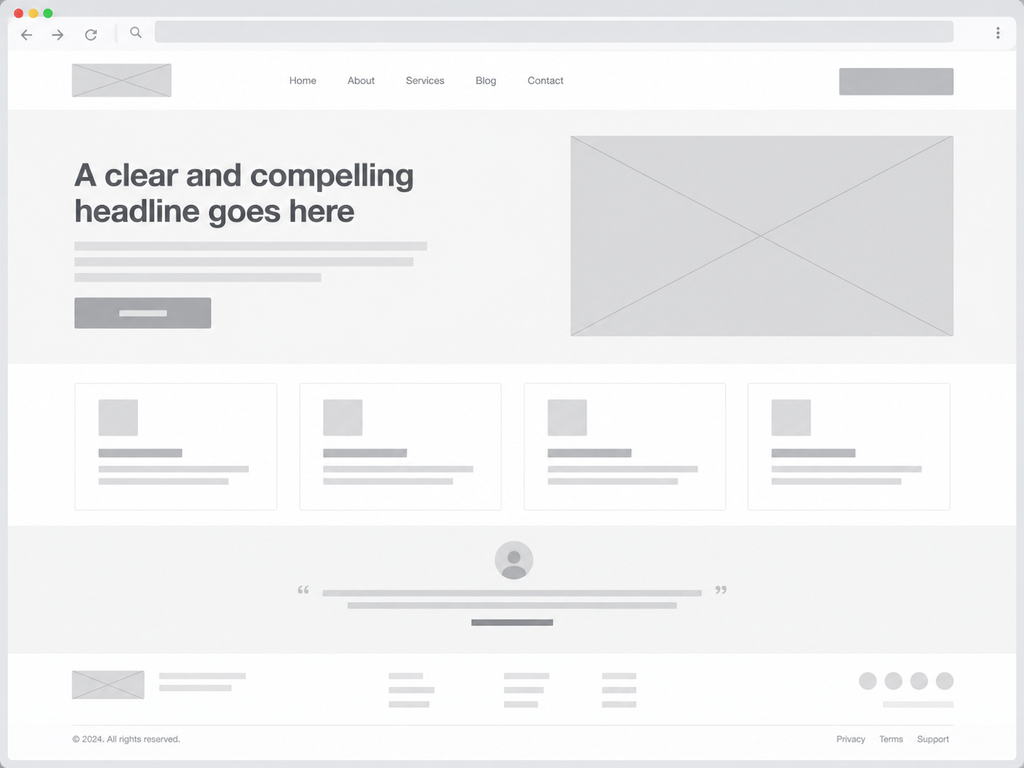
A wireframe shows structure. It shows where the navigation goes, what the main content is, and which button matters most. It leaves out colors, real images, and polished type on purpose.
That’s useful because changing a gray box takes seconds. Changing a finished design or a built page takes days.
Wireframe vs. mockup vs. prototype
These three terms get mixed up a lot. This is how I use them.
- Wireframe: The skeleton. It shows layout, content order, and what each element does.
- Mockup: A static picture of what the finished screen will look like, with real colors, fonts, and images.
- Prototype: A clickable version that simulates how someone moves through the product.
Most tools on this list do more than one of these. The difference is how far each one lets you go.
Low fidelity vs. high fidelity
A low-fidelity wireframe is rough on purpose. Think boxes, lines, and “lorem ipsum.” It keeps the conversation on structure and user flow.
A high-fidelity wireframe uses real UI components and realistic spacing. It’s closer to the final product and can often turn into an interactive prototype.
Neither one is better. Low fidelity is right when you’re still deciding what to build. High fidelity is right when you’re about to hand the design to developers.
The fidelity you need is the biggest single factor in which tool fits you.
What to look for in wireframe software
I kept coming back to the same questions while researching this list. These are the ones that separate a good fit from an expensive mistake.
How fast can you get a screen down? A PM or founder should be able to make something useful in the first session. If you need a UI kit and a YouTube tutorial first, the tool is built for designers.
How far can it take you? Some tools stop at low fidelity. Others go all the way to logic-driven prototypes and developer specs. Moving between tools mid-project costs time.
Who pays when stakeholders join? This one hides in the pricing page. Balsamiq, Whimsical, and Penpot let reviewers in for free. Miro can turn invited people into paid members if you’re not careful.
What does the free plan actually allow? Almost every tool has one. Almost every free plan has a ceiling you’ll hit within a week of real work.
How are AI features metered? Text-to-wireframe is now standard. What varies is the credit system behind it and how quickly you run out.
How does it hand off to developers? Look for an inspect mode, code export, Figma export, or an MCP server that lets AI coding tools read your designs.
Will it be around next year? Several popular tools have shut down or gone quiet since 2023. That’s a real risk if your whole design history lives in one app.
How I selected these tools
I started with the tools that show up most across top-ranking guides, G2’s wireframing category, and design community threads. Then I cut anything discontinued or in maintenance mode, which removed Adobe XD and InVision.
I scored the remaining tools on seven criteria, weighted by the problems real users complain about most. Pricing clarity and ease of use carry the most weight. The full scoring logic is in the methodology section near the end.
A note on evidence, since it matters:
- Hands-on: Figma and Miro. Our web design team at OneLittleWeb uses both on client projects.
- Research-based: The other eight. I worked from each vendor’s live pricing page, product documentation, and user reviews on G2 and other platforms.
I checked all pricing in September 2026. Prices are per editor per month, billed annually, unless I say otherwise.
One more thing. A lot of the guides ranking for this keyword are written by companies that make wireframe tools, and several put their own product at number one. Nobody on this list paid to be here, and OneLittleWeb doesn’t sell any of these tools.
Best Wireframe Tools: Score breakdown
Top UI/UX Design & Prototyping Tools Ranked
| Rank | Tool | Speed and ease (20%) | Pricing and value (20%) | Fidelity and prototyping (15%) | Collaboration and review (15%) | AI usefulness (10%) | Developer handoff (10%) | Longevity and data control (10%) | Overall score |
|---|---|---|---|---|---|---|---|---|---|
| 1 | Figma | 6 | 7 | 10 | 10 | 7 | 10 | 8 | 8.1 |
| 2 | Penpot | 6 | 10 | 8 | 8 | 4 | 8 | 10 | 7.8 |
| 3 | Visily | 9 | 8 | 6 | 7 | 9 | 7 | 6 | 7.6 |
| 4 | Balsamiq | 10 | 7 | 5 | 8 | 7 | 6 | 7 | 7.4 |
| 5 | Whimsical | 9 | 8 | 4 | 9 | 6 | 4 | 8 | 7.2 |
| 6 | Miro | 8 | 7 | 5 | 10 | 6 | 4 | 8 | 7.1 |
| 7 | UXPin | 5 | 5 | 10 | 7 | 6 | 10 | 7 | 6.9 |
| 8 | Uizard | 9 | 7 | 6 | 6 | 7 | 5 | 3 | 6.5 |
| 9 | Moqups | 8 | 8 | 6 | 7 | 2 | 4 | 7 | 6.5 |
| 10 | Axure RP | 4 | 5 | 10 | 6 | 3 | 7 | 7 | 5.9 |
Each criterion is scored out of 10, then weighted. Overall scores are rounded to one decimal.
1. Figma: Best for going from wireframe to developer handoff in one file
Best for: Product and design teams who want one tool from rough layout to dev handoff
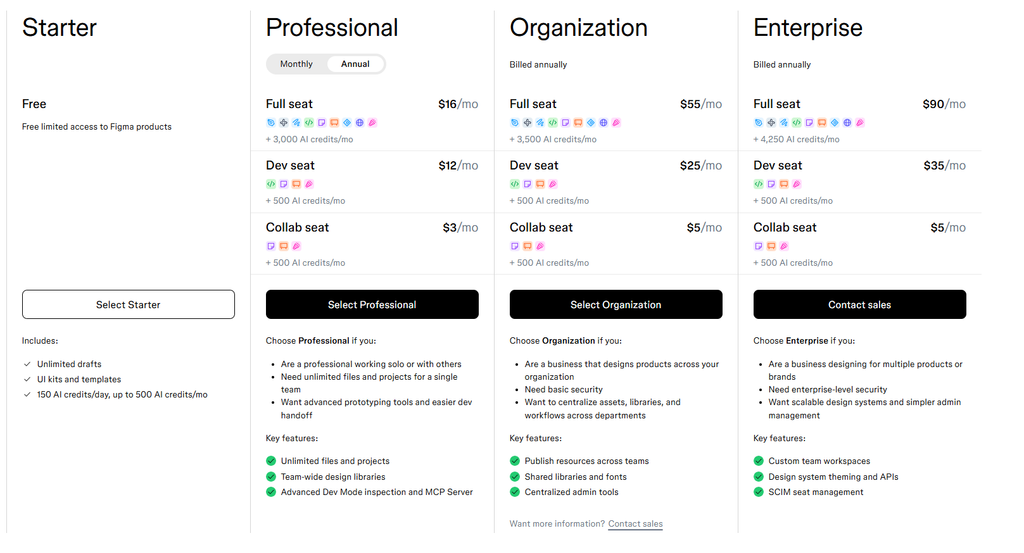
Starting price: Free; Professional Full seat $16/month (annual), Collab seat $3
Key differentiator: Wireframes, prototypes, and Dev Mode live in the same file
Quick overview
Figma is the tool our web design team at OneLittleWeb opens every day, so this review comes from real use.
It’s a browser-based design platform that covers wireframing, high-fidelity UI, prototyping, and developer handoff. It isn’t a dedicated wireframing app. You can start with gray boxes, then keep refining the same frames until they’re ready to build.
That continuity is its biggest advantage over every other tool here. You never export a wireframe from one app and rebuild it in another.
The trade-off is weight. Figma is a professional design tool, and non-designers often find it slow for quick layouts. G2 reviewers rate it 4.7 out of 5 from more than 1,400 reviews, which is the highest score on this list.
Key features
- Auto layout: Frames resize and reflow like real web layouts, so wireframes behave closer to the finished page.
- Components and variants: Build a button or card once and reuse it everywhere. Change the main component and every copy updates.
- Prototyping: Link frames together with clicks, transitions, and overlays to test a user flow.
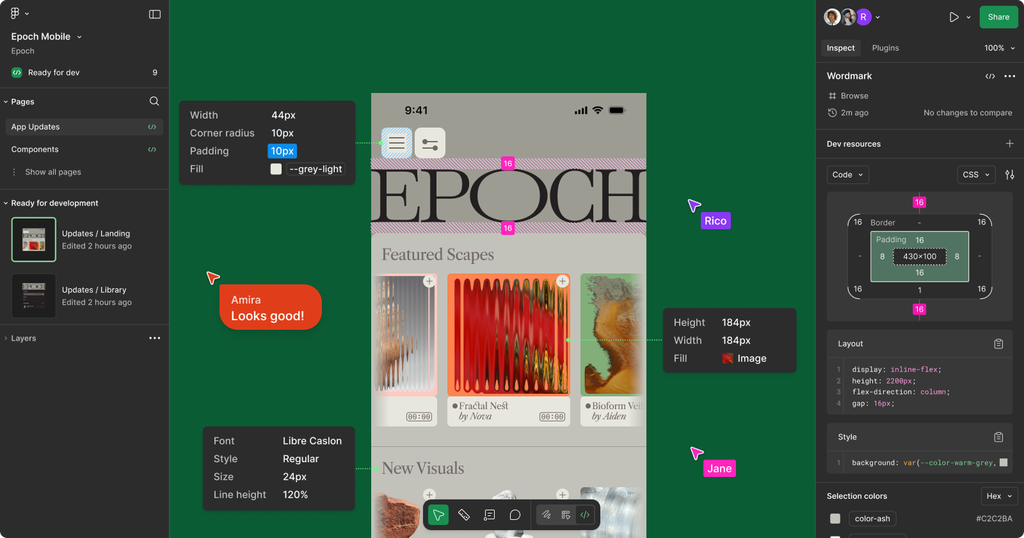
- Dev Mode: Developers inspect spacing, grab CSS, and export assets without edit access.
- Figma Make: Describe a screen or app in plain text and get a working draft you can edit.
- FigJam: A whiteboard for sitemaps and user flows, included with paid seats.
- Seat types: Full, Dev, and Collab seats let you pay less for people who only review or inspect.
- Dev Mode MCP server: AI coding tools can read design data directly from your files.
Pros
- One file carries a project from rough wireframe to developer-ready spec.
- Real-time collaboration is the best I’ve used. Multiple people can edit the same frame without conflicts.
- The Collab seat at $3 makes it cheap to bring PMs and clients into reviews.
- The community library has a huge number of free wireframe kits to start from.
- Dev Mode cuts down the back-and-forth with developers on our web builds.
Cons
- The learning curve is real for non-designers. One PM on Figma’s own forum said basic wireframing took him far longer than in Whimsical or Visily.
- The free Starter plan caps you at 3 design files, which a working team hits fast.
- Seat types are confusing. Put everyone on a Full seat and you’ll overpay.
- AI credits run out quickly. After limits started in March 2026, some users reported burning through 3,000+ credits in under an hour.
- Large files can lag during heavy collaboration, which G2 reviewers mention often.
Pricing
Reviews and ratings
- G2: 4.7/5 (1,588+ reviews)
- Capterra: 4.7/5 (876+ reviews)
Verdict
Figma is the best wireframe tool if wireframing is one step in a bigger design process. That’s how we use it at OneLittleWeb, and I wouldn’t swap it for client web design.
Skip it if: you only need quick low-fidelity layouts, or most of your wireframers aren’t designers. Balsamiq, Whimsical, or Visily will get them there faster.
2. Penpot: Best open-source wireframe tool
Best for: Teams who want to own their files, self-host, or avoid per-seat costs
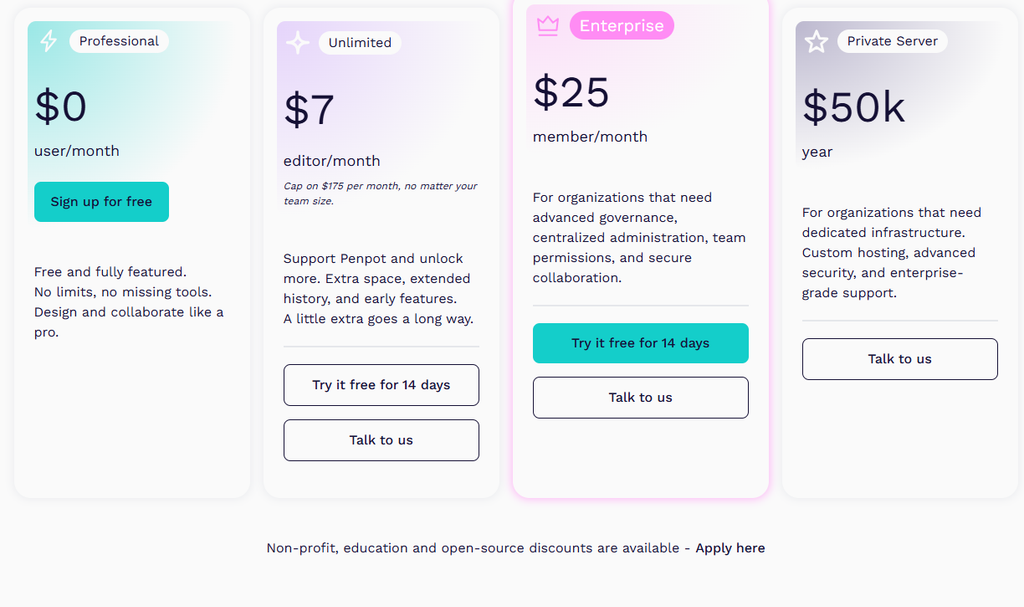
Starting price: Free for up to 8 members; Unlimited $7/user/month (capped at $175/month)
Key differentiator: Open source, with CSS-native layouts and free self-hosting
Quick overview
Penpot is a browser-based, open-source design and prototyping tool. It’s the closest thing to a free Figma alternative, and you can run it on your own server.
I haven’t used Penpot on client work, so this review is research-based. I worked from Penpot’s pricing page, product docs, and user reviews.
What sets it apart is ownership. Your files aren’t locked into one vendor, and self-hosting is free. That matters for agencies and teams in regulated industries where data can’t leave their own infrastructure.
Its layout system follows CSS Flexbox and Grid, which developers tend to like. The trade-off is polish. Users report slower performance on complex files and a smaller plugin library than Figma. G2 shows 4.5 out of 5, but from only about 10 reviews, so I wouldn’t lean on that number.
Key features
- Flex and Grid layout: Layout rules map directly to CSS, which makes handoff more predictable for developers.
- Design tokens: Store colors, spacing, and type as tokens that sync with code.
- Components and variants: Reusable UI parts for consistent wireframes and design systems.
- Prototyping: Interactions, transitions, and flows you can share with a link.
- Inspect mode: Developers see code, properties, and measurements for any element.
- Self-hosting: Run Penpot on your own server with Docker.
- API, webhooks, and MCP server: Connect Penpot to your dev tools and AI agents.
- Plugins: Use community plugins or build your own.
Pros
- The cloud Professional plan is free for up to 8 team members with unlimited viewers.
- Self-hosting is free with no seat limits.
- Unlimited plan bills are capped at $175 per month, no matter how big the team gets.
- CSS-based layouts make developer handoff cleaner.
- Open source means no vendor lock-in if the company changes direction.
Cons
- Performance can lag on large, multi-page files, according to user reviews.
- Far fewer plugins and integrations than Figma.
- Some users report thin documentation and occasional breaking updates.
- Self-hosting needs someone comfortable with Linux and Docker.
- AI wireframe generation isn’t built in the way it is in Visily or Uizard. Penpot relies on connecting outside AI agents.
Pricing
Reviews and ratings
- G2: 4.5/5 (10 reviews)
- Capterra: 4.0/5 (1 review)
Verdict
Penpot is the best choice if cost or data control is your top concern. A team of eight can wireframe, prototype, and hand off for free.
Skip it if: your team depends on Figma’s plugin ecosystem, or you need fast AI-generated wireframes out of the box.
3. Visily: Best wireframe tool for non-designers
Best for: PMs, founders, and developers who need clean wireframes without design skills
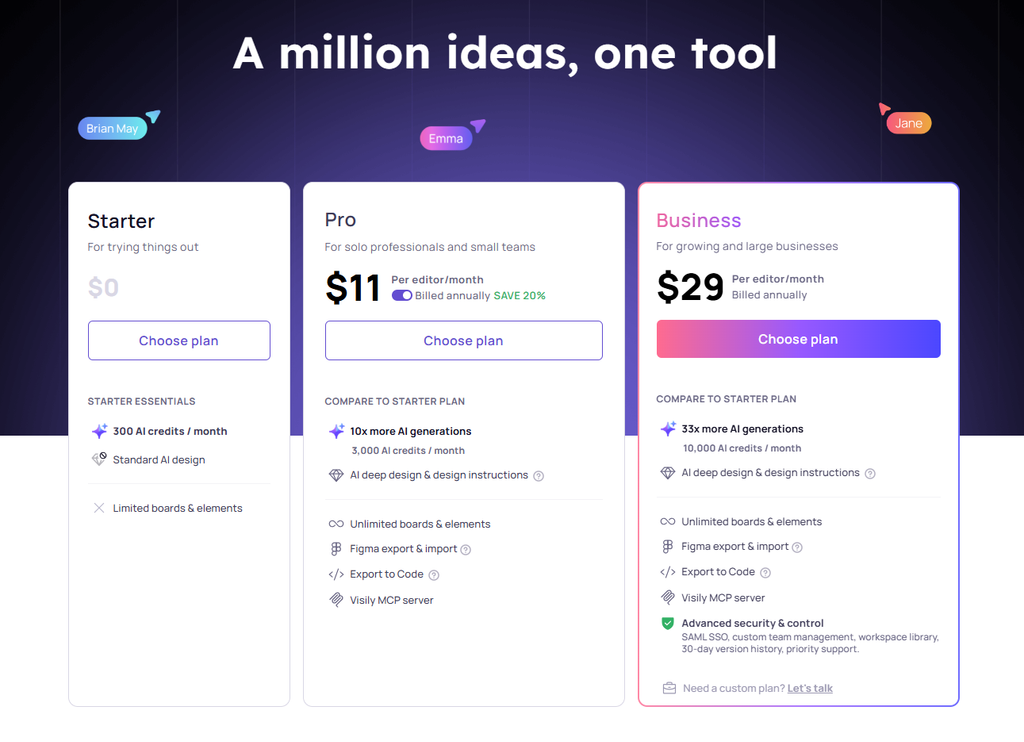
Starting price: Free; Pro $11/editor/month (annual)
Key differentiator: Turns text, screenshots, or sketches into editable wireframes
Quick overview
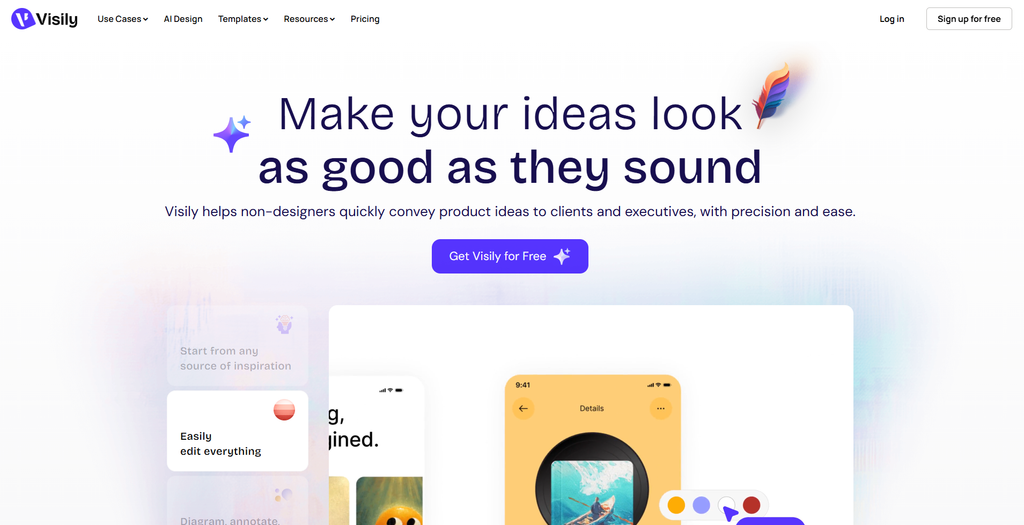
Visily is an AI-first wireframing and UI design tool built for people who don’t design for a living.
This review is research-based. I used Visily’s pricing page, its product docs, and user reviews.
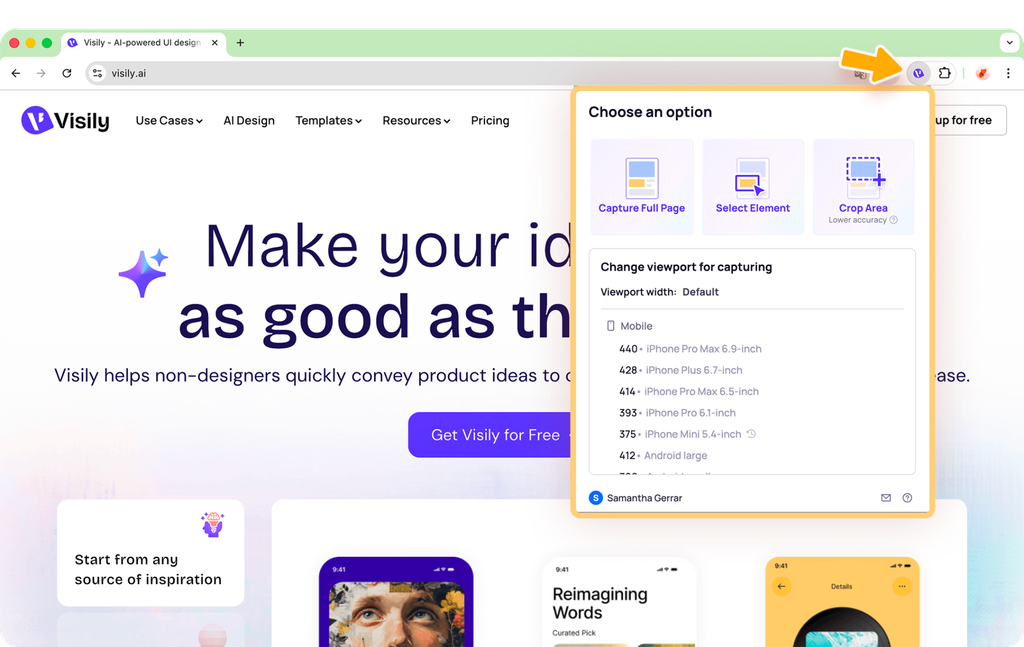
You can type a description, upload a screenshot of an existing app, or snap a photo of a sketch. Visily turns any of those into editable wireframes and mockups. A lo-fi and hi-fi switch lets you flip the same screen between rough and polished.
Compared with Uizard, its closest rival, Visily is more actively developed and exports to Figma on paid plans. That makes it a good first step before a designer takes over. The catch is the free plan, which only gives you two editable boards. G2 ratings sit around 4.2 to 4.4, but from a small number of reviews.
Key features
- Text to wireframe: Describe a screen or flow and get editable design objects, not a flat image.
- Screenshot to wireframe: Upload a screenshot and Visily rebuilds it as editable elements.
- Hi-fi and lo-fi switch: Toggle the same design between wireframe and polished mockup.
- AI deep design: A higher-effort mode for more detailed screens on paid plans.
- Templates: A large library of app, screen, component, and diagram templates.
- Figma import and export: Move work to and from Figma on Pro and above.
- Export to code: Generate code from designs on paid plans.
- MCP server and integrations: Connect to AI coding tools, plus Jira, Notion, and Slack.
Pros
- Very low learning curve for non-designers.
- AI output is editable, so you can fix what it gets wrong.
- Pro includes 3,000 AI credits per editor per month, which is generous.
- Figma export gives you a clean handoff to a designer.
- Real-time co-editing and comments are on every plan.
Cons
- The free Starter plan allows only 2 editable boards and adds watermarks to exports.
- Version history is only 7 days on Pro.
- SAML SSO requires the Business plan at $29 per editor.
- G2 reviewers mention limits in advanced prototyping and animation.
- AI credits and template credits are separate pools, which can be confusing.
Pricing
Reviews and ratings
- G2: 4.4/5 (36 reviews)
- Capterra: 4.8/5 (32+ reviews)
Verdict
Visily is the one I’d point a founder or PM to first. It gets an idea on screen fast and hands it to a designer cleanly.
Skip it if: you’re a professional designer who needs detailed interactions, or you need more than two boards without paying.
4. Balsamiq: Best for fast low-fidelity wireframes
Best for: Product teams who want to agree on structure before anyone talks about colors
Starting price: $16/editor/month (annual); reviewers are free
Key differentiator: A deliberately sketchy look that keeps feedback on layout, not polish
Quick overview
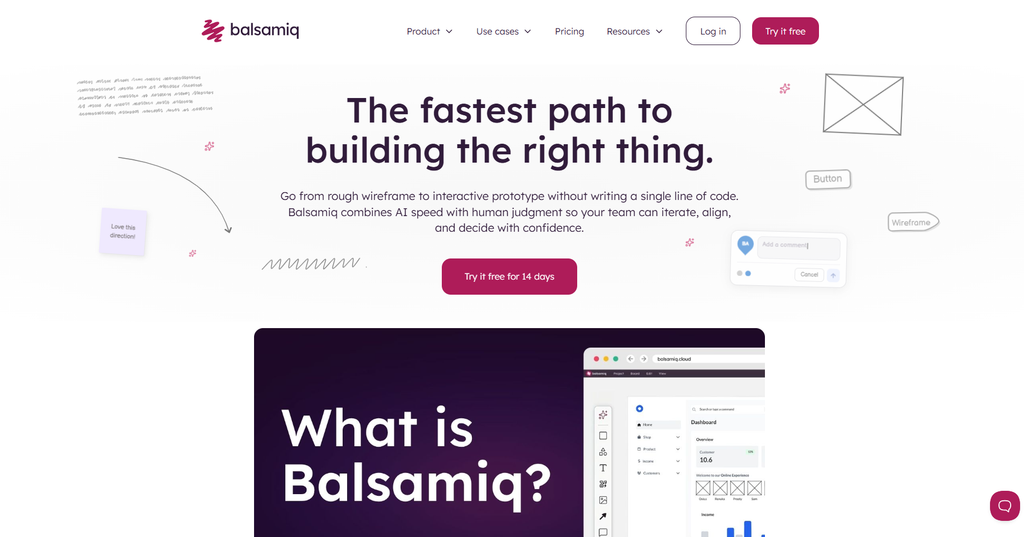
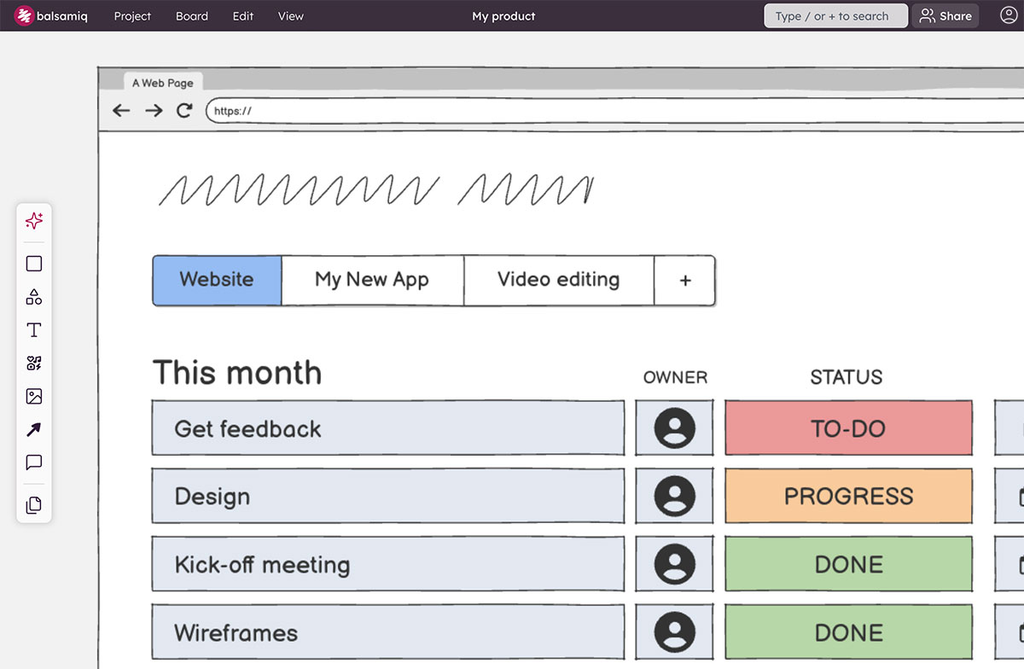
Balsamiq has been the go-to low-fidelity wireframing tool for well over a decade. Its hand-drawn look is intentional. Nobody mistakes a Balsamiq wireframe for a finished design, so reviewers comment on structure instead of button colors.
This review is research-based, built from Balsamiq’s pricing page, docs, and user reviews.
The big news in 2026 is pricing. Balsamiq dropped its old per-project model and now charges per editor, while keeping reviewers free. It also added AI wireframing, screenshot-to-wireframe, and an MCP server. Balsamiq Desktop sales end on December 31, 2026, so new users should go with Balsamiq Cloud.
G2 rates it 4.2 out of 5 from about 500 reviews. Users love the simplicity and wish it did more for complex projects.
Key features
- Drag-and-drop UI library: Pre-built controls for web and mobile screens you can drop in and edit.
- Sketch-style rendering: The rough look keeps early feedback focused on layout and flow.
- Balsamiq AI: Create and edit wireframes from prompts, convert screenshots, and generate clickable prototypes.
- Interactive prototypes: Link wireframes to show how a user moves through a flow.
- Custom reusable components: Build your own UI parts and reuse them across projects.
- Unlimited reviewers: Invite developers, clients, and execs to comment at no extra cost.
- Integrations and MCP server: Slack, Jira, Confluence, plus an MCP server for AI coding tools.
- Export: PDF and image export on every plan.
Pros
- Very easy to learn. G2 reviewers often say they picked it up without training.
- Unlimited free reviewers keep stakeholder costs at zero.
- The low-fidelity look keeps early feedback on the right topic.
- AI credits are included on every plan, with top-ups at $15 per 500 credits.
- SOC 2 and GDPR compliance, plus US or EU data storage on Enterprise.
Cons
- No free plan. You get a 14-day trial, then you pay.
- Not built for high-fidelity design. You’ll need another tool for polished UI.
- The new per-editor pricing can cost more than the old project-based plans for larger editing teams.
- Balsamiq Desktop users must move to Cloud before support ends in December 2027.
- Some G2 reviewers say it lacks depth for complex team projects.
Pricing
| Plan | Price (annual) | Projects | AI credits/editor/month |
|---|---|---|---|
| Starter | $16/editor/month | Up to 10 | 500 |
| Teams | $24/editor/month | Up to 100 | 1,000 |
| Enterprise | $35/editor/month | Up to 400 | 2,500 (plus SSO and data residency) |
Annual billing saves about 30%. Verified nonprofits can get 50% off.
Pricing note: G2 and several review sites still list Balsamiq at $12 per month for 2 projects with unlimited users. That was the old model. Use the vendor’s current pricing page.
Reviews and ratings
- G2: 4.2/5 (501+ reviews)
- Capterra: 4.4/5 (378+ reviews)
Verdict
Balsamiq is still the cleanest way to get a team aligned on structure. If your wireframes don’t need to become the final design, it’s hard to beat.
Skip it if: you want wireframes that evolve into high-fidelity designs in the same file, or you need a free plan.
5. Whimsical: Best for wireframes plus user flows
Best for: PMs and small product teams mapping flows and screens together
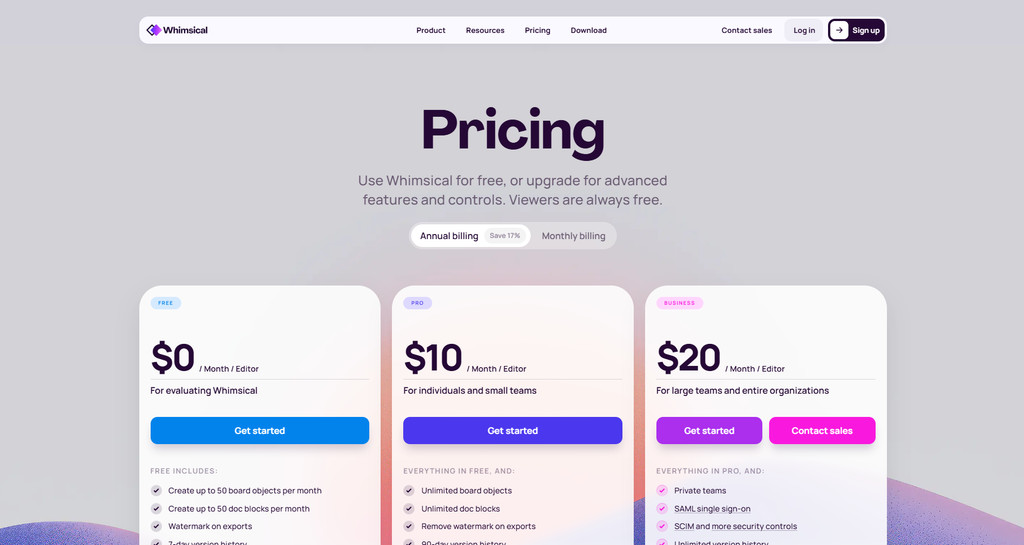
Starting price: Free; Pro $10/editor/month (annual)
Key differentiator: Wireframes, flowcharts, mind maps, and docs on one fast canvas
Quick overview
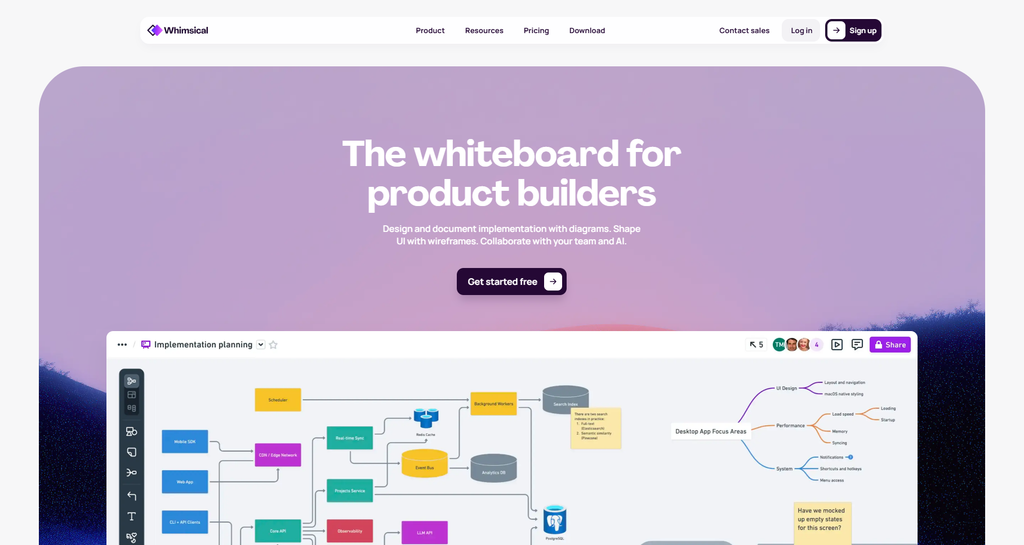
Whimsical is a visual workspace that combines wireframes, flowcharts, mind maps, and docs. It’s fast, clean, and easy for non-designers to pick up.
This review is research-based. I worked from Whimsical’s pricing page, help center, and user reviews.
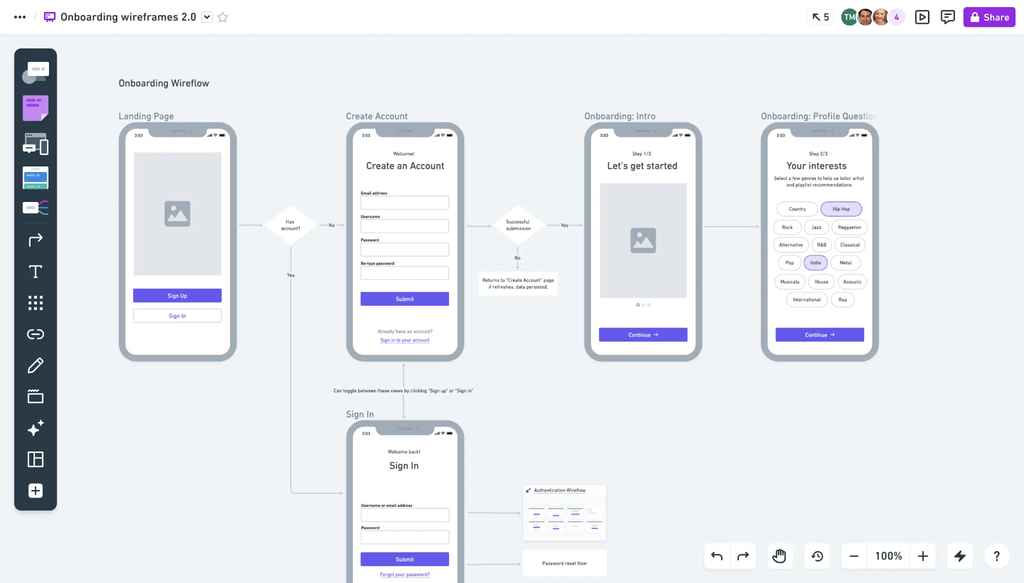
Its strength is putting a user flow and its screens side by side. A PM can map the steps of a signup flow, then drop in wireframes for each step on the same board.
The wireframing itself is basic. It’s great for mid-to-low fidelity, but you won’t build polished UI here. G2 rates Whimsical 4.6 out of 5 from about 187 reviews, and reviewers find it easier to use than UXPin.
Key features
- Wireframe library: Drag-and-drop buttons, inputs, checkboxes, and other UI elements.
- AI wireframes: Turn a text prompt into editable wireframes and wireflows for web and mobile.
- Flowcharts and diagrams: Map processes and user flows next to your screens.
- Docs: Write specs that embed live boards.
- Real-time collaboration: Unlimited viewers and guests on every plan.
- Desktop app: Available for macOS and Windows.
- Integrations: Slack, GitHub, and live embeds.
- Version history: 7 days on Free, 90 days on Pro, unlimited on Business.
Pros
- Very fast to learn and use.
- Viewers and guests are free on every plan.
- Flows and wireframes live on the same canvas.
- Pro is one of the cheapest paid plans here at $10 per editor.
- Students and teachers can use it for free, and nonprofits get 20% off.
Cons
- The free plan allows only 50 board objects and 50 doc blocks per month.
- Free exports carry a watermark.
- Wireframes stay fairly basic. There’s no real path to high fidelity.
- Some G2 reviewers mention a smaller template library than bigger platforms.
- SAML SSO and SCIM need the Business plan at $20 per editor.
Pricing
Reviews and ratings
- G2: 4.6/5 (189+ reviews)
- Capterra: 4.7/5 (59+ reviews)
Verdict
Whimsical is my pick for PMs who think in flows. It’s quick, cheap, and keeps screens and logic together.
Skip it if: your wireframes need to grow into high-fidelity designs, or you want a generous free plan.
6. Miro: Best for workshop-style wireframing
Best for: Cross-functional teams who wireframe during workshops and planning sessions
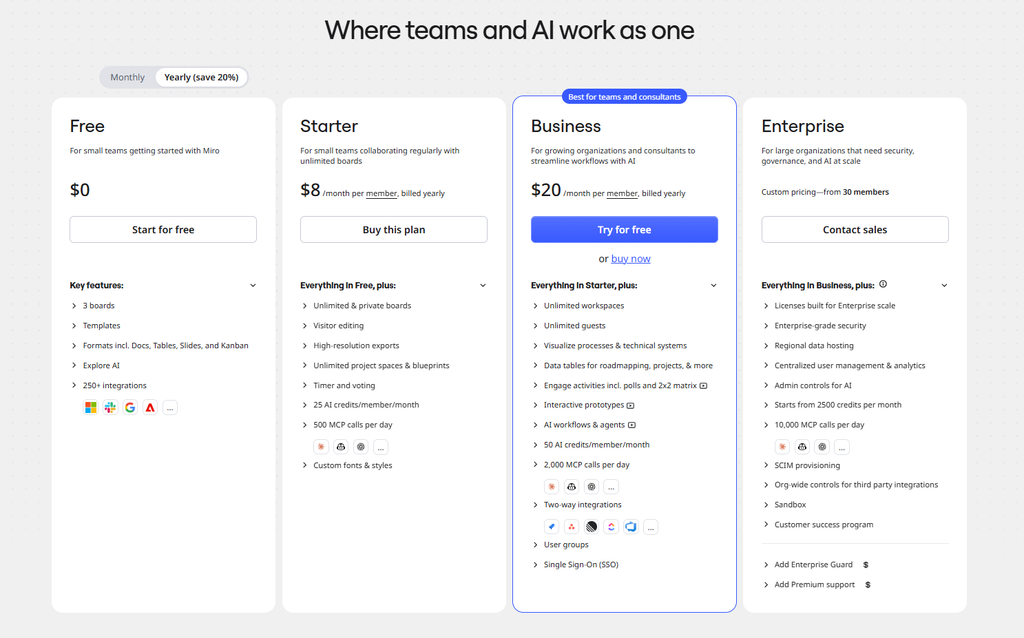
Starting price: Free; Starter $8/member/month (annual)
Key differentiator: Wireframes sit next to sticky notes, sitemaps, and research on one infinite canvas
Quick overview
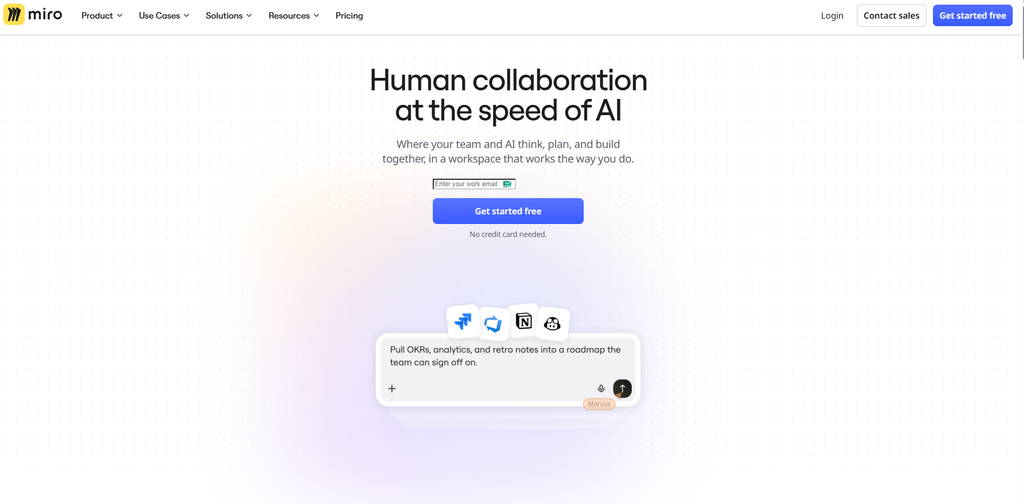
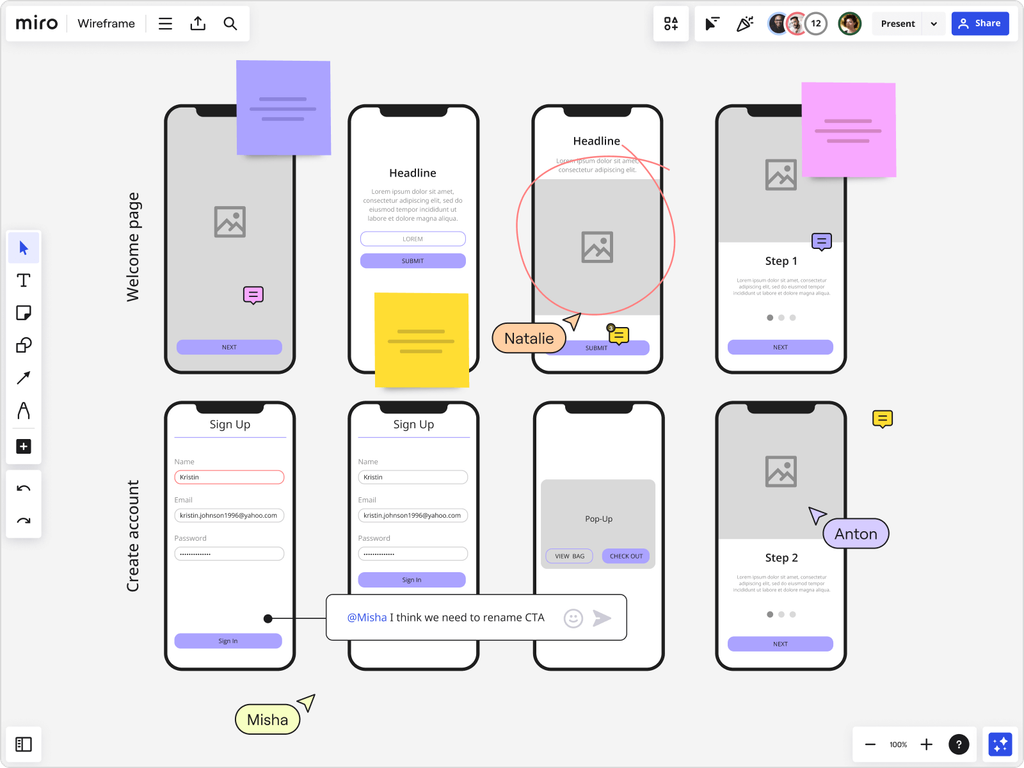
Miro is a collaborative whiteboard, not a dedicated wireframing tool. We use it at OneLittleWeb for client kickoff sessions and early site planning, so this review comes from hands-on use.
Where Miro shines is the messy early stage. You can gather goals on sticky notes, sketch a sitemap, and rough out key page layouts in the same session. Everyone in the room can add to the board at the same time.
Miro also added in-board prototyping and owns Uizard, though the two products still feel separate. For detailed wireframes, it’s less precise than Figma or Balsamiq.
G2 rates Miro 4.6 out of 5 from more than 12,000 reviews. The main complaint is that big boards get cluttered.
Key features
- Infinite canvas: Room for research, sitemaps, flows, and wireframes on one board.
- Wireframe and UI shapes: Drag-and-drop elements for quick layouts.
- Miro Prototypes: Build simple clickable prototypes inside a board.
- Templates: Thousands of templates, including wireframe and user flow starters.
- Workshop tools: Voting, timers, and video calls for running live sessions.
- Miro AI: Generate diagrams and summarize boards, with AI credits that vary by plan.
- Integrations: More than 160, including Jira, Asana, and Microsoft Teams.
Pros
- The best tool I’ve used for running a live planning workshop.
- Free visitor links on Starter let clients join boards without an account.
- Huge template and integration library.
- Mixed teams of marketers, developers, and clients pick it up quickly.
- Starter at $8 per member is one of the cheapest paid plans here.
Cons
- Wireframes are rougher and less precise than in dedicated tools.
- The free plan keeps only your 3 most recent boards editable.
- Invite people the wrong way and they become paid members. One user got a $2,674 annual charge after adding 25 workshop participants to a Starter team.
- AI credits are tight. The free plan gets 10 per team per month.
- Large boards can lag and get hard to navigate.
Pricing
Reviews and ratings
- G2: 4.6/5 (13,567+ reviews)
- Capterra: 4.7/5 (1,705+ reviews)
Verdict
Miro is where our projects start, not where wireframes end. It’s the right tool when the goal is getting a group to agree on structure.
Skip it if: you need precise wireframes or developer handoff. Pair it with Figma or Balsamiq instead.
7. UXPin: Best for prototypes built from real code
Best for: Product teams with a React component library who want prototypes that behave like the real product
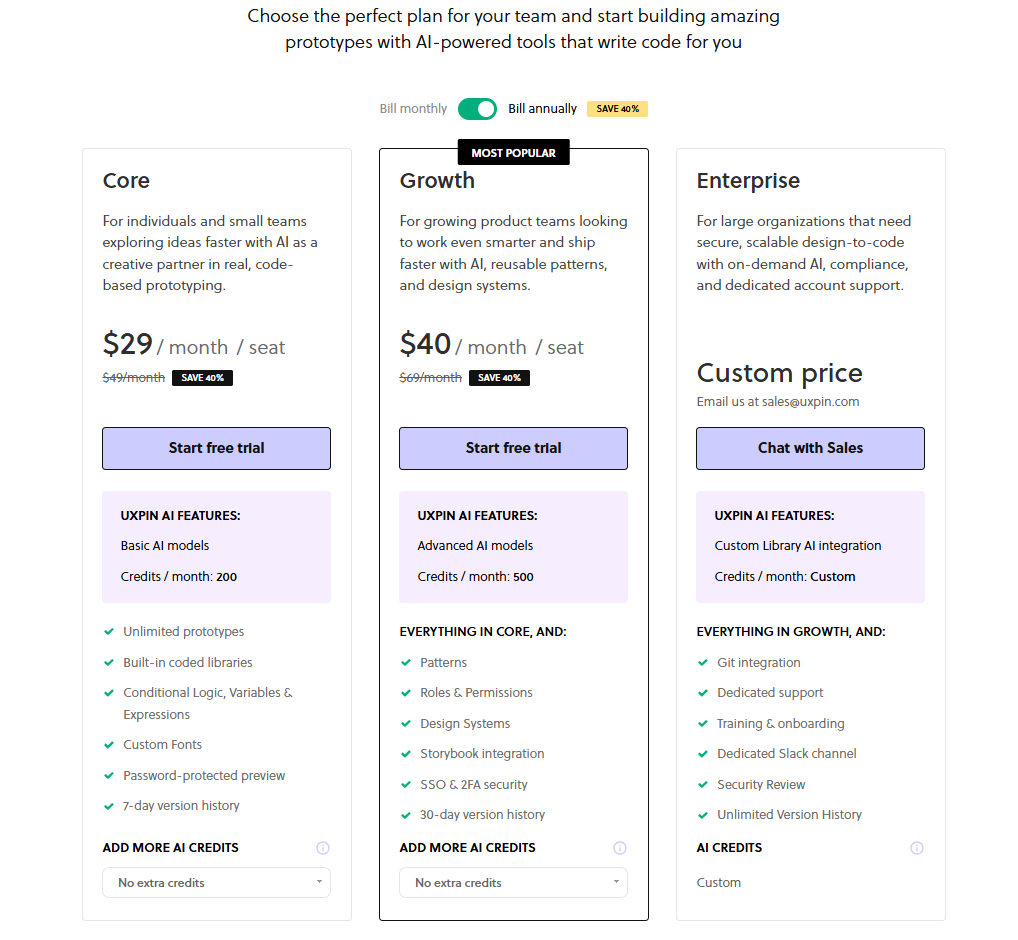
Starting price: Core $29/editor/month (annual)
Key differentiator: Merge lets designers build with production code components
Quick overview
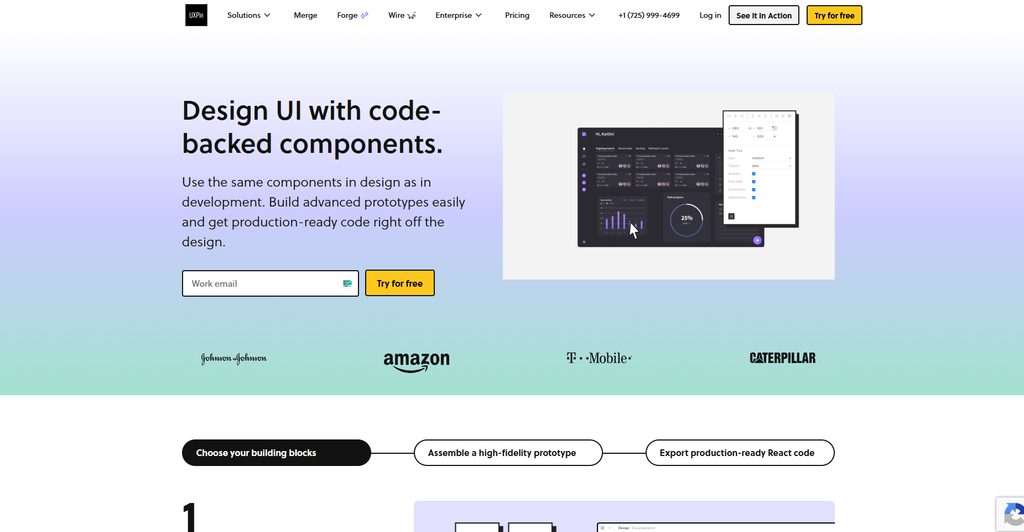
UXPin is a design and prototyping tool built around one idea. Designers should build with the same components developers ship.
This review is research-based, using UXPin’s own pricing information, product pages, and user reviews.
Its Merge technology syncs a React component library into the editor. A prototype built this way uses real code, so it behaves like the finished product. UXPin also supports conditional logic, variables, and expressions on every paid plan.
That makes it strong for complex products and design systems. It’s overkill for quick wireframes, and the learning curve is steeper than most tools here. G2 rates UXPin 4.2 out of 5 from about 118 reviews.
Key features
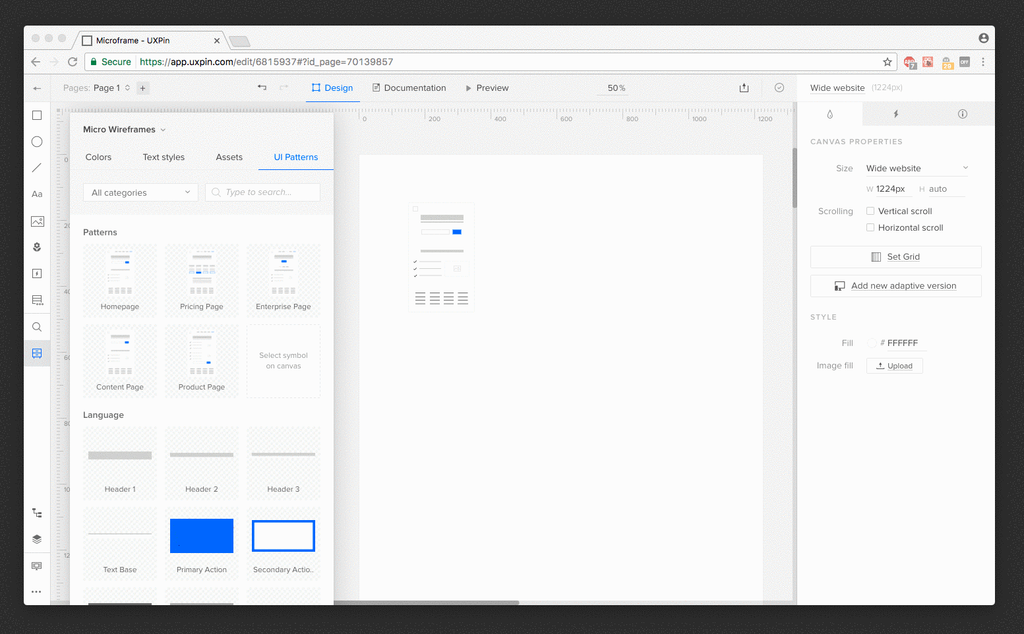
- Merge: Design with real React components synced from your codebase.
- Conditional logic and variables: Build prototypes that react to user input.
- Low to high fidelity: Start with simple wireframes and add detail in the same editor.
- AI Component Creator: Generate components from prompts within your design system’s rules.
- Storybook integration: Pull components from Storybook on Growth and above.
- Git integration: Keep design systems in version control on Enterprise.
- Security: SSO and 2FA on Growth and above.
Pros
- Prototypes behave like the real product, which makes user testing more accurate.
- Designers and developers share one source of truth for components.
- Advanced interactions are available on the entry paid plan.
- Strong fit for teams with mature design systems.
- Reviewers often note that handoff needs less redlining.
Cons
- The entry price is high at $29 per editor, and $49 on monthly billing.
- Merge only pays off if your product uses a React component library.
- Design system features are gated to Growth at $40 per editor.
- Only 200 AI credits per month on Core.
- G2 reviewers rate it lower than Whimsical on ease of use and setup.
Pricing
Reviews and ratings
- G2: 4.2/5 (118+ reviews)
- Capterra: 4.3/5 (26+ reviews)
Verdict
UXPin is a specialist tool. If your team already has a React design system, it can close the gap between prototype and product better than anything else here.
Skip it if: you mainly need fast wireframes, or your product isn’t built on reusable code components.
8. Uizard: Best for quick AI concept mockups
Best for: Founders and PMs who want a clickable concept in minutes
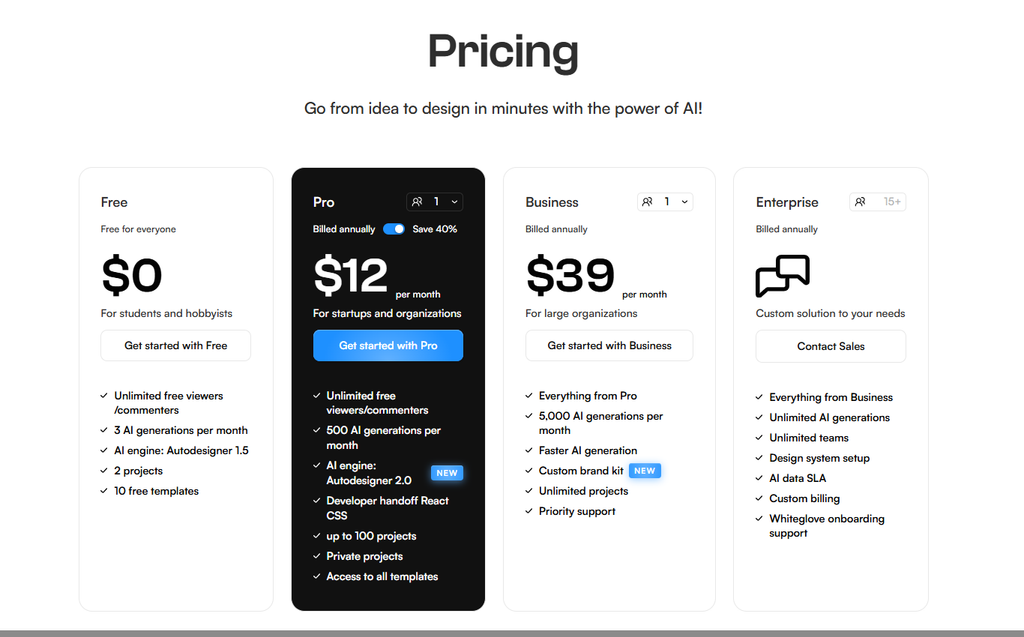
Starting price: Free; Pro $12/user/month (annual)
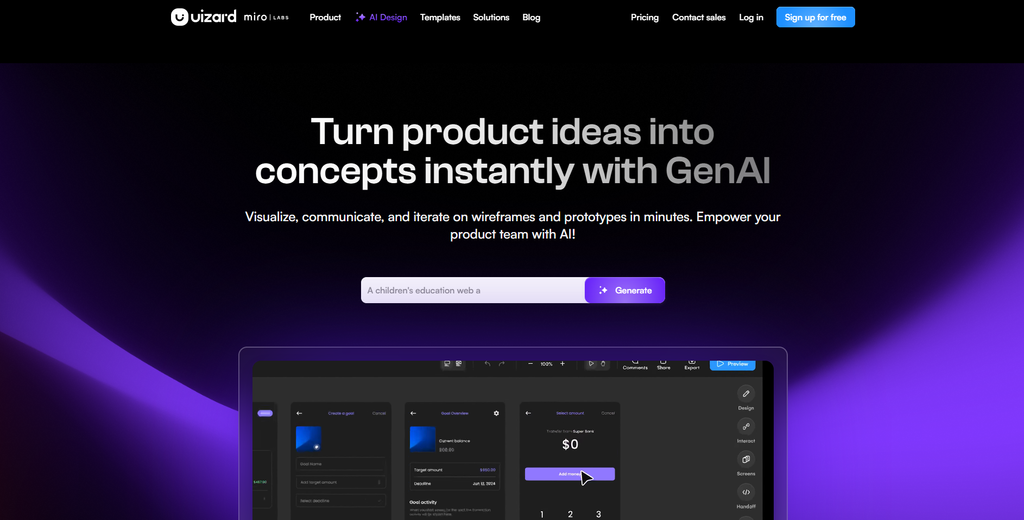
Key differentiator: Autodesigner turns a text prompt into a multi-screen prototype
Quick overview
Uizard was one of the first AI wireframe tools. Miro bought it in 2024, and it still runs as a separate product.
This review is research-based, using Uizard’s published plans, third-party testing, and user reviews.
Its Autodesigner 2.0 can generate a multi-screen, clickable prototype from one text prompt. It can also turn screenshots and hand-drawn sketches into editable designs. For a founder pitching an idea, that speed is the whole appeal.
My concern is momentum. Autodesigner 2.0 launched in 2024, and I couldn’t find a major product update since. Reviewers also say the output needs a designer’s cleanup before it’s usable. G2 rates Uizard 4.5 out of 5 from about 45 reviews.
Key features
- Autodesigner 2.0: Generate multi-screen prototypes from a text description.
- Screenshot scanner: Turn a screenshot of any app into an editable design.
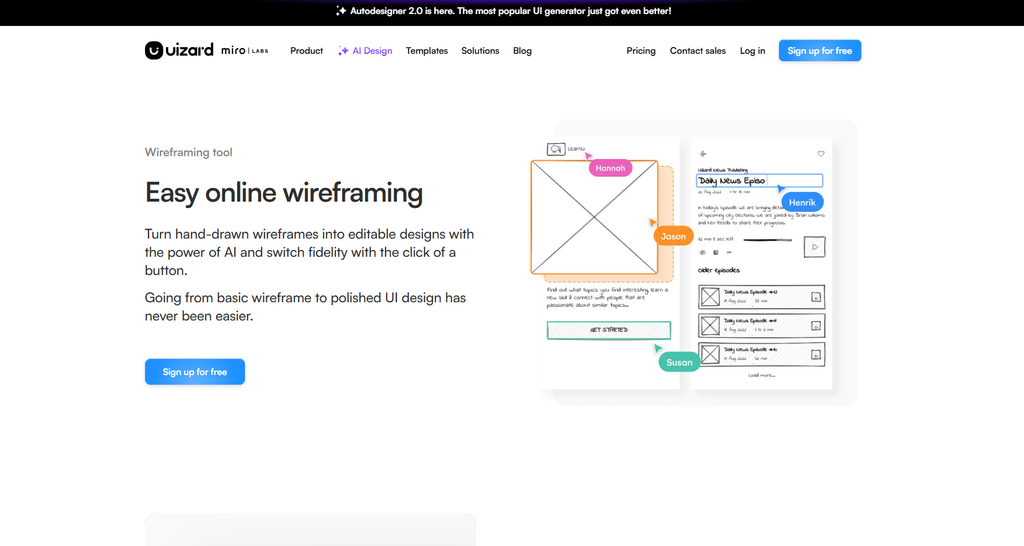
- Wireframe scanner: Convert a hand-drawn sketch into a digital wireframe.
- Wireframe mode: Switch designs to a low-fidelity view.
- Templates: Ready-made app and web templates.
- Export: React and CSS code export, useful as a starting point.
Pros
- Very fast from idea to clickable concept.
- Easy for people with no design background.
- Sketch and screenshot scanning save a lot of manual rebuilding.
- Pro includes 500 AI generations per month.
- Hand-editing doesn’t use up AI generations.
Cons
- No major public product update since Autodesigner 2.0 in 2024.
- AI output often needs cleanup on spacing and hierarchy.
- The free plan’s 3 AI generations per month is barely enough to test it.
- Design system support is shallow.
- Exported code is scaffolding, not production-ready.
Pricing
Reviews and ratings
- G2: 4.5/5 (45+ reviews)
- Capterra: 4.6/5 (193+ reviews)
Verdict
Uizard is still a fast way to turn an idea into something clickable. I’d use it for a pitch or an early concept, not as a long-term home for your design work.
Skip it if: you need a tool with an active roadmap, or you plan to keep and grow the designs over time. Visily is the safer AI pick.
9. Moqups: Best for wireframes plus diagrams on a budget
Best for: Small teams and consultants who wireframe and diagram in the same app
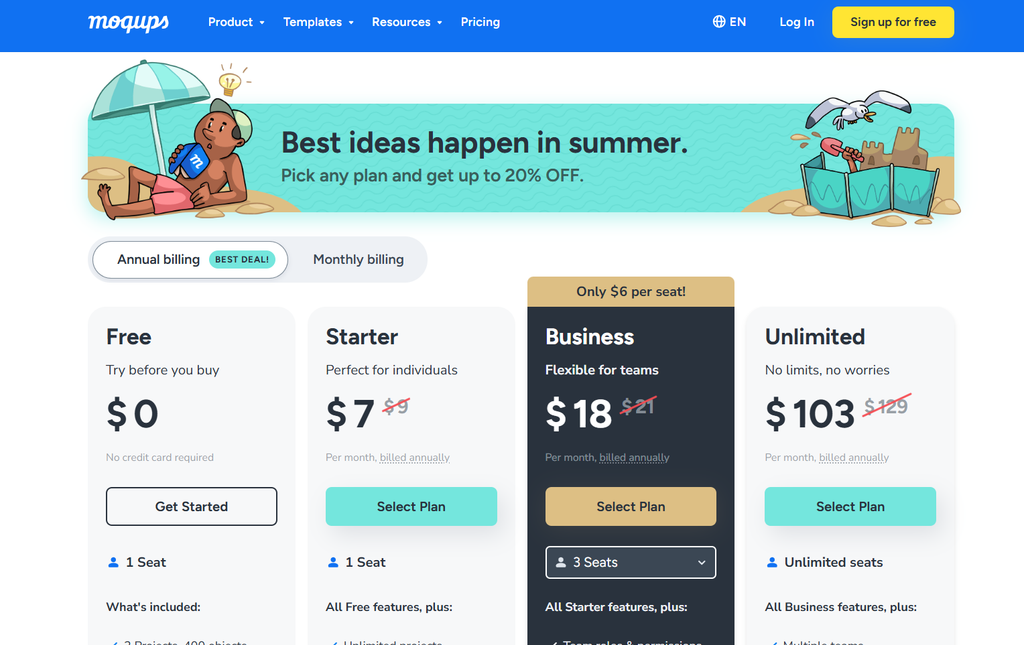
Starting price: Free; Starter $9/month for 1 seat (annual, list price)
Key differentiator: Wireframes, mockups, diagrams, and charts under one subscription
Quick overview
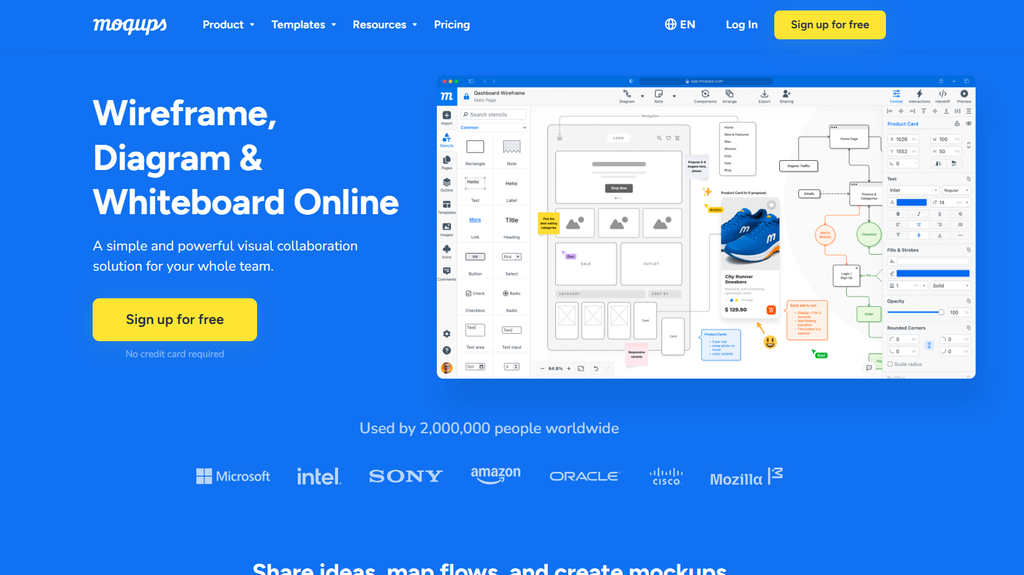
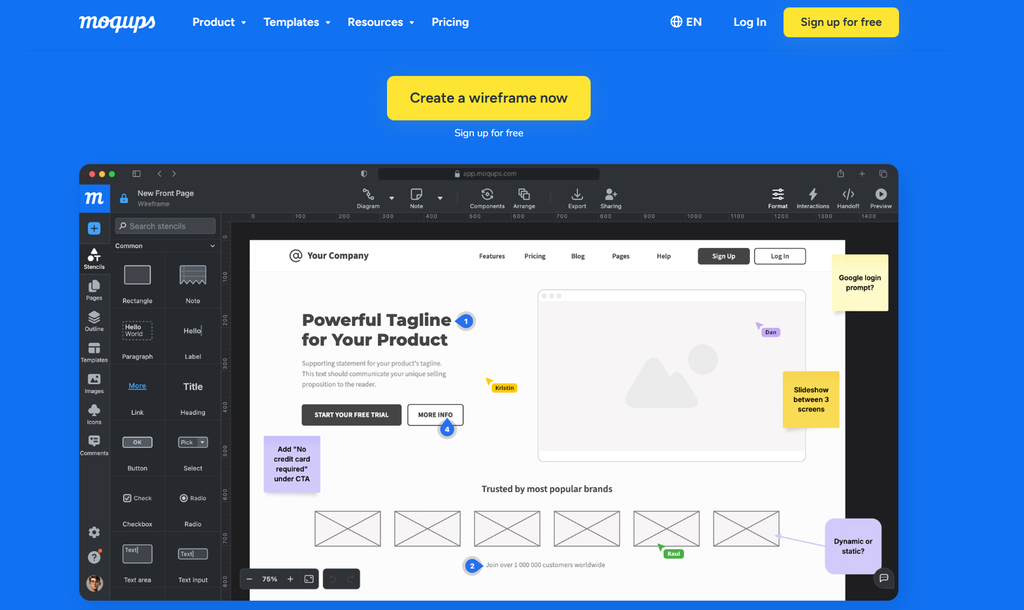
Moqups is a browser-based app that combines wireframing, mockups, diagrams, prototypes, and charts. It’s been around since 2012.
This review is research-based, built from Moqups’ pricing page and user reviews.
Its appeal is breadth at a low price. A consultant can build a sitemap, a UML diagram, and page wireframes in one project. Moqups also exports full projects to an offline HTML viewer, which helps when clients sit behind strict firewalls.
What it lacks is AI. Apart from a webpage-to-wireframe feature, I didn’t find text-to-wireframe generation. G2 rates Moqups 4.2 out of 5 from about 91 reviews.
Key features
- Stencils and UI components: Drag-and-drop wireframe elements for web and mobile.
- Diagramming: Sitemaps, user journeys, org charts, UML, and ERD diagrams.
- Interactions: Link pages and objects to build clickable prototypes.
- Synced components: Reusable elements that update across a project.
- Templates and icon sets: 150+ templates and many popular icon libraries.
- Offline HTML viewer: Export whole projects with interactions and comments.
- Integrations: Jira, Confluence, Google Drive, Dropbox, Box, and Slack.
Pros
- One subscription covers wireframes, diagrams, and charts.
- Low entry price for solo users.
- Reviewers call the learning curve shallow.
- Free guests can view and comment on paid plans.
- A 30-day refund window on paid plans.
Cons
- No real AI wireframe generation.
- The free plan allows only 2 projects and 400 objects per project.
- Real-time collaboration needs the Business plan.
- Not suited to high-fidelity design or detailed developer handoff.
- A Capterra reviewer complained about auto-renewal and refunds.
Pricing
Reviews and ratings
- G2: 4.2/5 (91+ reviews)
- Capterra: 4.6/5 (29+ reviews)
Verdict
Moqups is good value if you diagram as much as you wireframe. It’s a practical tool for consultants and small teams.
Skip it if: you want AI help, or you need your wireframes to become polished designs.
10. Axure RP: Best for complex logic and enterprise specs
Best for: UX teams documenting complex, data-heavy products
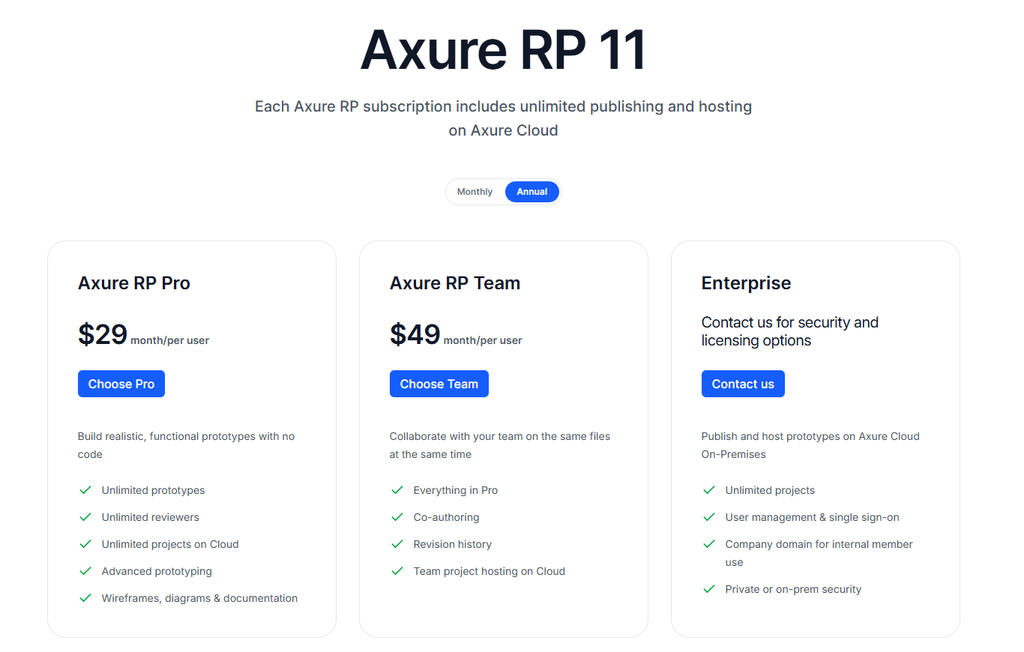
Starting price: Pro $29/user/month (annual)
Key differentiator: Deep conditional logic, variables, and built-in documentation
Quick overview
Axure RP is a veteran prototyping tool for complex software. Think enterprise dashboards, internal tools, and multi-step forms with lots of rules.
This review is research-based, using Axure’s published plans and user reviews.
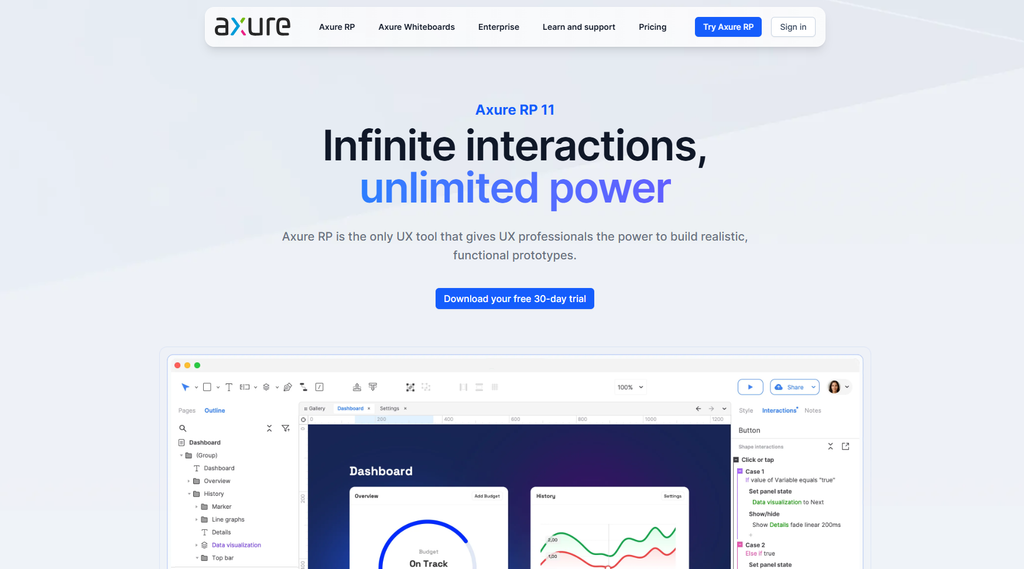
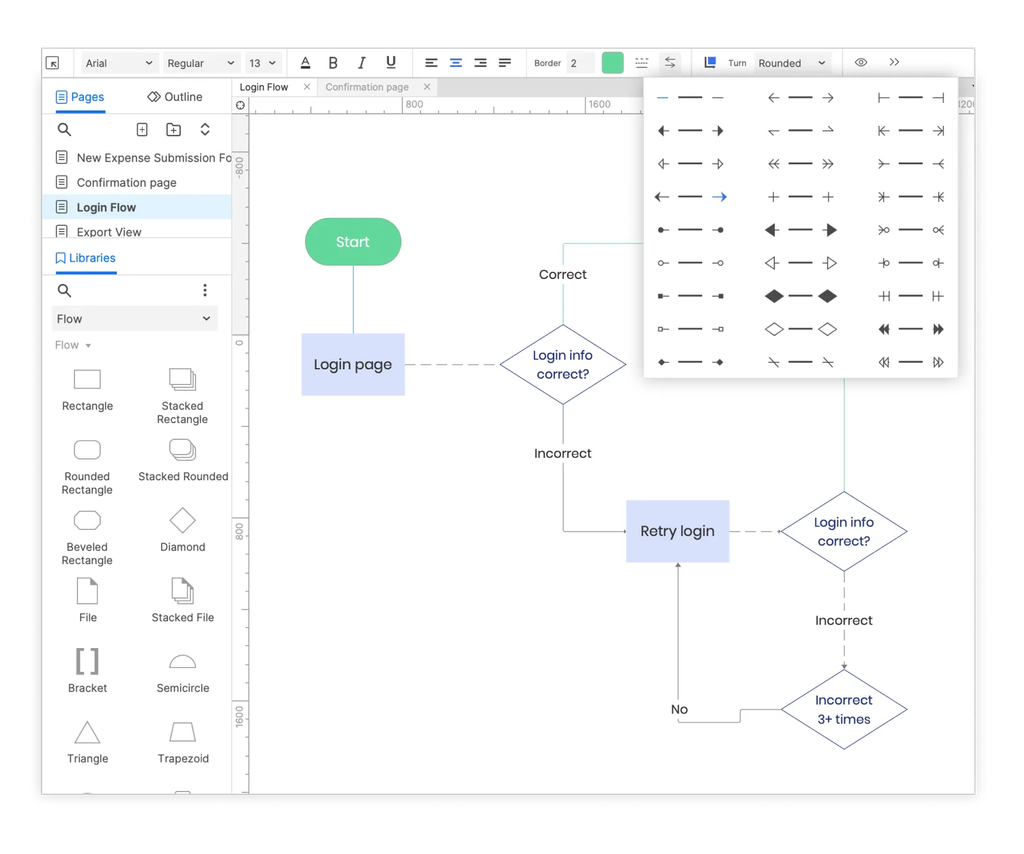
Axure lets you build prototypes with conditions, variables, math functions, and adaptive views, all without code. It also combines wireframes, flow diagrams, and written notes, so one file can act as a full product spec.
The trade-off is usability and cost. G2 reviewers score its ease of use at 6.8, the lowest in this group, and I didn’t find AI wireframe generation in its public plan details. G2 rates it 4.2 out of 5 from about 277 reviews.
Key features
- Conditional logic: Show, hide, and change content based on user actions and rules.
- Variables and math functions: Build realistic forms, calculators, and data flows.
- Adaptive views: Design for several screen sizes in one file.
- Documentation: Attach notes and specs directly to wireframes.
- Axure Cloud: Publish prototypes and collect unlimited reviewer comments.
- Inspect and handoff: Developers can grab CSS and assets.
- Desktop apps: Windows and macOS, plus on-premises options for enterprises.
Pros
- Handles interaction logic that simpler tools can’t.
- Prototypes double as detailed documentation.
- Unlimited reviewers on Axure Cloud.
- On-premises hosting and SSO for enterprises with strict security needs.
- Free Team licenses for qualified students and educators.
Cons
- Steep learning curve. G2 ease-of-use scores are well below the others here.
- No free plan.
- $29 per user for Pro and $49 for Team is expensive for wireframing alone.
- Collaboration features lag behind browser-first tools.
- No visible AI wireframe generation.
Pricing
Reviews and ratings
- G2: 4.2/5 (277+ reviews)
- Capterra: 4.4/5 (110+ reviews)
Verdict
Axure RP is still the tool for spec-heavy enterprise work. For everyday wireframing, it’s more tool than most teams need.
Skip it if: you want quick wireframes, strong real-time collaboration, or AI help.
Other wireframe tools worth knowing
These didn’t make the top 10, but they’re worth a look for specific needs.
- Justinmind: A prototyping tool for interactive wireframes and web and mobile simulations. It’s a middle ground between Moqups and Axure.
- Sketch: A native macOS design app. It’s a solid wireframing tool if your whole team is on Mac.
- MockFlow: A browser-based wireframing tool with a big component library and templates.
- Wireframe.cc: A minimal browser tool for simple, distraction-free wireframes.
Two tools I left out on purpose: Adobe XD, which Adobe no longer actively develops, and InVision, which shut down at the end of 2024. Some guides still recommend both.
Head-to-head: Figma vs. Balsamiq
These two come up together more than any other pair, and they solve different problems.
Balsamiq is for deciding what to build. Its rough look keeps everyone focused on layout and flow. Reviewers are free, and non-designers get productive almost right away.
Figma is for building it. You can wireframe in Figma, but its real value is carrying that wireframe through to a polished design and a developer handoff.
| Figma | Balsamiq | |
|---|---|---|
| Fidelity | Low to high | Low only |
| Learning curve | Steeper | Very gentle |
| Free plan | Yes, 3 design files | No, 14-day trial |
| Paid entry | $16 Full seat, $3 Collab seat | $16 per editor |
| Reviewer cost | $0 for view-only | $0 |
| Developer handoff | Dev Mode, MCP server | Exports, MCP server |
| AI | Figma Make, credit-based | Balsamiq AI, credit-based |
Plenty of teams use both. Balsamiq for early discovery, then Figma once the structure is agreed. If you can only pay for one and you have a designer on staff, pick Figma. If your wireframers are mostly PMs, pick Balsamiq.
Head-to-head: Visily vs. Uizard
Both tools promise AI wireframes for non-designers. On paper they look close. In practice, the difference is momentum.
| Visily | Uizard | |
|---|---|---|
| Text to wireframe | Yes | Yes (Autodesigner 2.0) |
| Screenshot to wireframe | Yes | Yes |
| Sketch to wireframe | Yes | Yes |
| Figma export | Yes, on Pro | Not a core export path |
| Entry paid plan | $11/editor, 3,000 AI credits | $12/user, 500 AI generations |
| Free plan | 2 editable boards, 300 credits | 3 AI generations per month |
| Recent development | Visily 4.0 AI update, MCP server | No major public update since 2024 |
Visily and Uizard count AI usage in different units, so compare them by testing the same prompt in both.
I’d pick Visily for most people. It’s actively developed, and the Figma export gives you a clean handoff. Uizard is fine for a one-off pitch concept.
What each tool really costs at team scale
Per-seat prices look small until you multiply them. This table shows annual list cost for 1, 5, and 15 editors on each tool’s most common entry plan.
| Tool | Plan used | 1 editor/year | 5 editors/year | 15 editors/year | Watch out for |
|---|---|---|---|---|---|
| Figma | Professional, Full seats | $192 | $960 | $2,880 | Mix in $3 Collab seats for reviewers to cut costs |
| Penpot | Professional, then Unlimited | $0 | $0 | $1,260 | Free plan caps at 8 members; Unlimited caps at $175/month |
| Visily | Pro | $132 | $660 | $1,980 | Free plan allows 2 editable boards |
| Balsamiq | Starter | $192 | $960 | $2,880 | Starter caps at 10 projects; Teams is $24/editor |
| Whimsical | Pro | $120 | $600 | $1,800 | SSO needs Business at $20/editor |
| Miro | Starter | $96 | $480 | $1,440 | Invited people can become paid members |
| UXPin | Core | $348 | $1,740 | $5,220 | Design systems need Growth at $40/editor |
| Uizard | Pro | $144 | $720 | $2,160 | 500 AI generations per user per month |
| Moqups | Starter, Business, Unlimited | $108 | Check seat selector | $1,548 | Business sells in 3, 5, or 10 seat packs |
| Axure RP | Pro | $348 | $1,740 | $5,220 | Team plan is $49/user |
A few things stand out.
Penpot is the cheapest option by a wide margin for small teams. A five-person team pays nothing on the cloud plan.
Figma gets much cheaper with smart seat choices. Five people with two Full seats and three Collab seats cost $492 a year, about half the all-Full price.
UXPin and Axure cost roughly three times as much as Whimsical at every team size. That’s fair if you need their advanced prototyping, and hard to justify if you don’t.
Which wireframe tool should you pick?
Start with your situation, not the feature list.
- You’re a designer on a product team: Figma. It covers the whole path to handoff.
- You’re a PM or founder with no design background: Visily for AI help, or Balsamiq if you prefer drag-and-drop.
- You want stakeholders focused on structure, not colors: Balsamiq.
- You map user flows as much as screens: Whimsical.
- You run workshops with clients or cross-functional teams: Miro, then move the output into Figma or Balsamiq.
- You need to self-host or keep costs near zero: Penpot.
- Your product runs on a React component library: UXPin.
- You document complex enterprise software: Axure RP.
- You wireframe and diagram in equal measure on a tight budget: Moqups.
- You need a clickable concept for a pitch tomorrow: Uizard or Visily.
Website or mobile app? Every tool here handles both. For marketing websites, I’d lean toward Figma or Balsamiq. For mobile app flows, Whimsical and Visily make it easy to see screens in sequence.
How I scored these tools
I built the weights around the problems users complain about most in reviews and forums. Seat confusion, surprise charges, and steep learning curves came up far more than missing features. So those areas carry the most weight.
1. Speed and ease of use (20%). A high score means a PM or founder can make a useful screen in their first session. A low score means you need a UI kit, training, or a designer to get started.
2. Pricing clarity and value at team scale (20%). A high score means free reviewers, a predictable bill as the team grows, and a free plan you can do real work in. A low score means a high entry price, confusing seat rules, surprise charges, or no free plan.
3. Fidelity range and prototyping depth (15%). A high score means one tool covers rough wireframes through logic-driven prototypes. A low score means the tool stops at basic clickable screens or low fidelity only.
4. Collaboration and stakeholder review (15%). A high score means smooth real-time editing, good commenting, and free access for reviewers. A low score means paid seats for commenters or weak live editing.
5. AI usefulness and credit fairness (10%). A high score means AI output you can edit, plus credit limits that hold up under daily use. A low score means no AI wireframing, or credits that run out almost immediately.
6. Developer handoff and workflow continuity (10%). A high score means inspect mode, code or Figma export, or an MCP server that AI coding tools can read. A low score means image and PDF export only.
7. Longevity and data control (10%). A high score means an active roadmap, clean export options, and self-hosting or data residency. A low score means a stalled product, a sunset announcement, or files you can’t easily move.
Evidence basis. Figma and Miro scores reflect hands-on use by our team at OneLittleWeb. The other eight are based on vendor documentation, live pricing pages checked in September 2026, and user reviews. None of the vendors saw these scores before publication.
Frequently asked questions
Not sure which wireframe tool to use or whether you need one at all? These frequently asked questions cover the basics, from what wireframing software does to which features matter when comparing different tools.
What is the best free wireframe tool?
Penpot has the most generous free plan. Its cloud Professional plan is free for up to 8 team members, and self-hosting is free with no seat limit. Figma’s free Starter plan is also useful for solo work, but it caps you at 3 design files.
Can I wireframe in Figma?
Yes. Many teams wireframe in Figma using frames, auto layout, and free wireframe kits. It’s slower than a dedicated tool for rough sketches, but you won’t need to rebuild anything when you move to high fidelity.
Is Balsamiq still worth it in 2026?
Yes, if you want fast low-fidelity wireframes and free reviewers. Just note the pricing change. Balsamiq now charges $16 to $35 per editor, and Balsamiq Desktop sales end on December 31, 2026.
What’s the difference between a wireframe and a mockup?
A wireframe shows layout and structure with simple shapes and placeholder text. A mockup shows what the finished screen will look like, with real colors, fonts, and images.
What’s the difference between a wireframe and a prototype?
A wireframe is usually static and shows structure. A prototype is interactive and lets people click through a flow to test how it works.
Can AI create wireframes?
Yes. Visily, Uizard, Balsamiq, Whimsical, and Figma can all turn a text prompt into an editable draft. The output is a starting point, and most still need manual cleanup. Each tool meters AI use with credits or generation limits.
Which wireframe tool is best for beginners?
Balsamiq and Whimsical have the gentlest learning curves. Visily is the easiest if you want AI to do the first draft for you.
Is there an open-source wireframe tool?
Penpot is the leading open-source option. You can use its hosted version or run it on your own server with Docker.
Final thoughts
There isn’t one best wireframe tool for everyone. The right pick depends on how polished your wireframes need to be and who’s making them.
If I had to pick one for most product teams, it’d be Figma. That’s what we use at OneLittleWeb, and it carries a project from gray boxes to launch.
If your team isn’t full of designers, start with Visily or Balsamiq. If budget or data control comes first, try Penpot before paying for anything.
Whatever you choose, check the live pricing page before you commit. This year has already shown how quickly those numbers change.